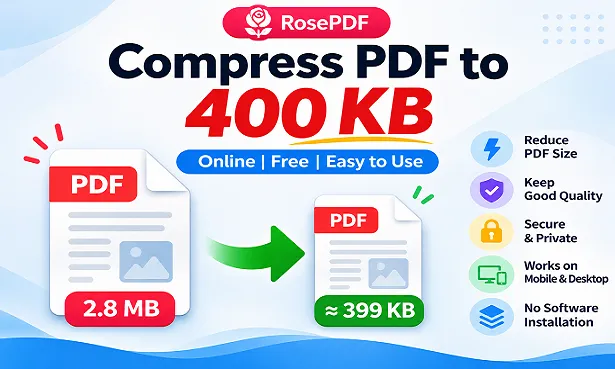
Compress PDF to 400 KB
Make your PDF smaller and choose the size that works for you—all in a few simple steps.
Your file is processed in this browser and is not uploaded to RosePDF’s server.
Choose target size
Choose the maximum file size that fits your needs. Your finished PDF will be shown before you download it.
Your PDF is ready
Continue with Other Tools
Everything you need to manage, convert and organize your files.
Compress PDF to 400 KB Online – Reduce PDF Size Near 400 KB
Have you ever tried uploading a PDF document to a website only to find that the file is too large? This can happen when submitting an application, sharing a certificate, sending an office document, or uploading a scanned record. Many online platforms set a maximum file size for attachments. If your PDF exceeds that limit, you may need to make it smaller before the website accepts it.
RosePDF makes this process easier with its Compress PDF to 400 KB tool. It allows you to select a PDF, choose the 400 KB target-size option, and download a smaller version of your document. The resulting file is generally around 399 KB, approximately 1 KB below the selected target. This can be useful when you need a PDF close to a 400 KB file-size requirement.
A 400 KB target can be a practical choice for documents that need more space than very small targets such as 100 KB or 200 KB. For example, a scanned certificate with several details, a multi-page application document, or a record containing photographs may need more room to remain readable. Selecting a suitable target can help balance file size with the visual quality of the document.
You do not need to manually experiment with complicated compression settings. Open the RosePDF tool, select your document, choose the required target size, and start the process. Once compression is complete, download the PDF and check its actual size.
People search for this type of tool in different ways. Some search for "compress PDF to 400 KB online", while others look for "reduce PDF size to 400 KB", "PDF compressor 400 KB", or "compress PDF under 400 KB". The purpose is usually the same: to prepare a smaller document for an upload limit, email attachment, or document-sharing requirement.
This page explains how to compress PDF to 400 KB, when this target size may be useful, how to prepare scanned documents, what to check after compression, and how to deal with common problems. You will also find practical tips for keeping your document readable after reducing its size.
What Does Compress PDF to 400 KB Mean?
Compress PDF to 400 KB means reducing the file size of a PDF towards a selected target of 400 KB. It is particularly useful when an online service has a file-size limit and your original document is larger than the permitted size.
A PDF is not always just a collection of text. It can contain photographs, scanned pages, logos, signatures, stamps, charts, diagrams, and embedded fonts. All these elements can contribute to the total file size.
For example, a PDF created directly from a word-processing document may be relatively small because it mainly contains text. A scanned PDF, on the other hand, may store every page as an image. Even a document with only a few pages can become large if the images have high resolution.
The RosePDF 400 KB PDF compressor provides a target-size option to help bring your document close to 400 KB. After processing, the output is generally around 399 KB. The small difference between the selected target and the downloaded file is expected.
The final output depends on the original PDF and its contents. A short text document, a scanned certificate, and a multi-page document containing photographs may produce different compression results.
It is important to understand that selecting 400 KB does not mean that every PDF will have exactly the same output size or visual quality. The target is a compression goal. Always check the downloaded document before using it.
Why Choose a 400 KB Target for Your PDF?
Not every document needs to be reduced to the smallest possible size. Sometimes, choosing an extremely small target can make a scanned document difficult to read. A larger target may provide more room for photographs, signatures, stamps, and other visual details.
This is one reason why someone may search for Compress PDF to 400 KB instead of choosing 100 KB or 200 KB.
A 400 KB target may be worth considering when:
- A website allows PDF files up to 400 KB.
- Your document contains several scanned pages.
- The PDF includes photographs or detailed graphics.
- You need to upload certificates with visible stamps and signatures.
- A smaller target makes the document difficult to read.
- You want to reduce a large PDF before sharing it.
- You need a smaller attachment for an email or online form.
For example, imagine that you have scanned a three-page document containing printed text, an official stamp, and a signature. The original PDF may be larger than necessary for an online upload. You can try the 400 KB target-size option and then inspect the result.
The right target is always the one that satisfies the receiving website's requirements while keeping the document readable. If a portal permits only 200 KB, selecting 400 KB will not meet that limit. If it allows up to 500 KB, you may not need to compress as aggressively as you would for a 100 KB requirement.
How to Compress PDF to 400 KB Online with RosePDF
You can use the RosePDF tool through a supported web browser. The process is straightforward and does not require you to adjust advanced PDF settings manually.
Step 1: Open the RosePDF PDF Compression Page
Visit the RosePDF Compress PDF to 400 KB page. Open the tool interface where you can select your document.
Make sure you are using the correct target-size page. If your requirement is 400 KB, choose the 400 KB option rather than a different size.
Step 2: Select the PDF You Want to Reduce
Click the upload or file selection area and choose the PDF from your device.
Before selecting the file, check its name so that you do not accidentally choose an older or incorrect version. If the document contains multiple pages, make sure you have selected the complete file.
Step 3: Select the 400 KB Target
After selecting your PDF, choose the 400 KB target-size option.
This tells the tool the approximate size you want to achieve. The target-size selection is useful when you have a specific upload requirement instead of simply wanting a smaller document.
Step 4: Start the Compression Process
Start processing using the available compression button.
Wait for the tool to finish. Processing time can depend on the original file, its number of pages, the content inside it, and the device or browser being used.
Avoid closing the page while the PDF is being processed.
Step 5: Download Your Compressed PDF
Once processing is complete, use the download option to save the new PDF.
Choose a folder where you can easily find the file. If you are using a phone, check the Downloads folder or your file manager.
Step 6: Check the Actual File Size
After downloading, check the file details to see how large the compressed PDF is.
When you select the 400 KB target, the resulting file is generally around 399 KB. This is approximately 1 KB below the selected target and is expected behaviour.
Step 7: Review the PDF Before Using It
Open the downloaded document and inspect its pages.
Check whether all pages are present, text is readable, and important details such as names, dates, numbers, photographs, signatures, and stamps are visible.
If the PDF is intended for an official application, make sure it meets all the requirements before uploading it.
When Should You Use Compress PDF to 400 KB?
A 400 KB PDF can be useful in several everyday situations. The exact requirement depends on the website or service where you need to submit the document.
1. Uploading Scanned Certificates
Scanned certificates can become large because they contain images of the original paper document. These scans may include coloured stamps, signatures, background patterns, and printed text.
If a website permits a PDF close to 400 KB, you can try the RosePDF target-size option. After compression, check that the certificate details remain readable.
2. Submitting Multi-Page Documents
Some online forms require more than one page in a single PDF. Combining multiple scanned pages can increase the file size.
A 400 KB target may be worth trying when a multi-page document needs to be reduced but a very small target could affect readability.
However, the final result depends on the number of pages and their contents. Do not assume that every multi-page PDF will fit the same target equally well.
3. Sharing Documents Through Email
Large attachments can be inconvenient to send, particularly when an email service has an attachment limit or a recipient has a slow internet connection.
You can try to reduce PDF size to 400 KB before attaching it to an email. A smaller PDF may be easier to send and download.
4. Sending Documents Through Online Portals
Websites used by schools, offices, businesses, and service providers may ask users to upload supporting documents.
If the upload field specifies a maximum size of 400 KB, using a 400 KB PDF compressor can help prepare the document for submission.
5. Storing Digital Records
People often keep digital copies of certificates, letters, bills, and other documents. Large PDFs can take up unnecessary storage space.
Compressing a document may make it easier to organise and store. Keep the original file separately if it is important to preserve its original quality.
Compress PDF to 400 KB for Job Applications and Recruitment Forms
Job application websites often require candidates to upload several supporting documents. These may include educational certificates, identity proofs, experience letters, category certificates, and other records.
Each upload field can have its own file-size restriction. One field may allow a PDF up to 400 KB, while another may require a photograph or signature in a different format.
If your document is larger than the permitted size, you can try using Compress PDF to 400 KB online to prepare a smaller copy.
This can be useful for:
- Recruitment application documents
- Educational qualification certificates
- Experience certificates
- Category and eligibility certificates
- Identity-related documents
- Supporting letters
- Other PDF attachments
Before uploading, check the recruitment notification or instructions displayed on the application portal. Do not assume that every document has the same size limit.
After compression, open the PDF and check the candidate's name, certificate number, dates, issuing authority, photograph, and signature. A document that meets the size requirement but contains unreadable details may cause problems during verification.
Reduce PDF Size for Education and Admission Documents
Students often need to upload academic records during admission, examination registration, scholarship applications, and other education-related processes.
These records may include mark sheets, degree certificates, transfer certificates, migration certificates, identity proofs, and supporting documents.
A scanned copy can become large, especially when it contains multiple pages or photographs. If the destination website allows a PDF around 400 KB, you can try the RosePDF PDF size reducer to 400 KB.
Mark Sheets and Academic Records
Mark sheets contain names, roll numbers, subject details, marks, and other important information. Make sure all these details remain clear after compression.
Admission Supporting Documents
Admission forms may require several documents in a single application. Check the file-size restriction for each attachment before using the 400 KB target.
Scholarship Documents
Scholarship applications may require academic records, income certificates, identity documents, and other supporting files. A smaller PDF can make document preparation easier when the portal has a suitable size limit.
Examination Registration
Examination websites may have separate requirements for documents, photographs, and signatures. Compress only the PDF files that need size reduction, and use the required format for the other attachments.
How to Compress a Scanned PDF to 400 KB
A scanned PDF is often larger than a PDF created directly from text. This happens because scanned pages are commonly stored as images.
For example, when you scan a paper certificate using a phone, the camera may capture more detail than the document actually needs for online submission. The resulting PDF can contain large images even if the page itself has very little text.
If you need to compress a scanned PDF to 400 KB, consider the following points.
Check the Original Scan
Open the original document and check whether the pages are clear. If the scan is already blurry, compression will not restore the missing detail.
Check Page Alignment
A document photographed at an angle or with unnecessary background space may be larger or less convenient to read. If possible, prepare a properly aligned scan before creating the PDF.
Review Colour Requirements
Some certificates contain coloured stamps, seals, or signatures. Do not convert them to black and white unless the receiving organisation accepts that format and the important details remain visible.
Select the 400 KB Target
Upload the PDF to RosePDF and choose the 400 KB target-size option.
Inspect Every Page
After downloading the compressed PDF, zoom in and check the smallest printed text, stamps, signatures, and numbers.
The aim should be to reduce the file size without making the document unsuitable for its intended purpose.
What Is the Difference Between a 400 KB PDF and a 400 KB PDF Target?
These expressions may sound similar, but it is useful to understand what they mean when preparing documents.
A 400 KB PDF simply describes a document whose file size is around 400 KB.
A 400 KB target refers to the size you select when using a target-size compression tool. The tool attempts to bring the original document towards that selected size.
In the RosePDF tool, selecting 400 KB generally produces an output around 399 KB. It should not be treated as an exact file-size guarantee.
If a website says "maximum 400 KB", a file below that limit may be suitable, provided it meets the other requirements. If a website specifies a particular range, check that range rather than relying only on the selected target.
Difference Between Regular Compress PDF and Compress PDF to 400 KB
RosePDF provides different PDF compression options for different needs.
Regular Compress PDF
The regular Compress PDF tool is useful when you simply want to make a PDF smaller.
You do not need to choose a particular output target. The aim is to reduce the document size, and the final result depends on the original file.
This can be useful for reducing large email attachments, storing digital documents, or sharing PDFs more conveniently.
Compress PDF to 400 KB
The target-size option is intended for people who have a specific size requirement.
You select 400 KB and the tool attempts to reduce the document towards that target. The output is generally around 399 KB.
This can be useful when a form, portal, or other service specifies a file-size limit close to 400 KB.
Which One Should You Use?
Use regular compression when you only want a smaller PDF.
Use Compress PDF to 400 KB when you need a document close to that particular target.
If the receiving website allows a larger file, you may not need to reduce your document as much. Choose a target according to the actual upload instructions.
Benefits of Using a 400 KB PDF Compressor
A Practical Target for Different Documents
A 400 KB target can be useful for documents that need more room than very small file-size limits provide. It may be worth trying for scanned records, certificates, and multi-page documents.
Convenient for Online Applications
When an application portal has a suitable file-size restriction, a target-size PDF compressor can make it easier to prepare the required attachment.
Simple Compression Process
You can select the PDF and choose the target without manually adjusting multiple compression settings.
Useful for Document Sharing
Smaller PDFs can be more convenient to send through email or share through supported services.
Helps Organise Digital Files
Reducing unnecessarily large documents can make digital records easier to store and manage.
Suitable for Different Types of Users
Students, job applicants, office workers, business owners, and general users may all need to reduce PDF file size for different reasons.
How to Reduce PDF Size Without Making It Difficult to Read
Many people search for phrases such as "compress PDF to 400 KB without losing quality" or "reduce PDF size without losing quality". The concern is understandable: a smaller file is not useful if the document becomes difficult to read.
The amount of visible change depends on the original PDF and the compression process. Some files contain mostly text, while others contain large scanned images.
Here are a few practical ways to prepare a document for compression.
Start with a clear original: If you are scanning a paper document, make sure the original scan is readable before compression.
Avoid unnecessary pages: If certain pages are not required and you are allowed to remove them, organise the PDF before compressing it.
Check image-heavy pages: Photographs, detailed charts, and coloured backgrounds can affect the file size.
Use the correct target: Do not select a smaller target than the receiving website requires. A 400 KB target may be more appropriate than 100 KB when the upload limit allows it.
Review the output: Open the downloaded PDF and inspect the text and images before submitting it.
Keep a backup: Save the original PDF separately so you can use it if the compressed version is not suitable.
No compression process can guarantee that every document will retain identical visual quality. Always check the result.
Common Problems When Compressing PDF to 400 KB
My PDF Is Still Larger Than 400 KB
The final file size depends on the original PDF and its contents. A document with many scanned pages or high-resolution images may be more difficult to reduce than a short text document.
Check that you selected the correct target-size option and downloaded the processed PDF. If the result is not close to the expected size, try again using the original file.
My PDF Is Around 399 KB Instead of 400 KB
This is expected behaviour for the RosePDF 400 KB target-size option. The output is generally around 399 KB, approximately 1 KB below the selected target.
The selected size is a compression goal rather than a guarantee of an exact output. A file around 399 KB does not mean that the compression process has failed.
My PDF Becomes Blurry After Compression
Scanned PDFs and image-heavy documents may lose some visual detail during compression.
Open the original and compressed versions and compare them. Pay attention to names, numbers, small text, signatures, stamps, and photographs.
If important information is no longer readable, keep the original document and avoid using the compressed copy for an official submission.
The Compressed PDF Is Not Opening
A file may not open if the download was interrupted or the saved file is incomplete.
Try downloading the processed PDF again. You can also open it with another supported browser or PDF reader.
Make sure the downloaded file has the correct PDF extension.
The Website Does Not Accept My 399 KB PDF
A file close to 399 KB may still be rejected if the website has additional requirements.
Check whether the upload field accepts PDF files, whether it has a different size calculation, and whether there are page-count or document-quality restrictions.
Do not assume that the file-size requirement is the only condition.
The PDF Compression Process Is Taking Too Long
Large files and documents containing many scanned images may take longer to process.
Wait for the operation to finish. Avoid closing or refreshing the page while processing is in progress.
If the browser stops responding, reopen the tool and try again using the original PDF.
Some Pages Are Missing
Open the downloaded PDF and check its page count. If any required page is missing, do not submit the file.
Try processing the original PDF again and inspect the result before using it.
My Original PDF Is Already Smaller Than 400 KB
If your original PDF is already below the receiving website's maximum size, you may not need to compress it.
Check the actual file-size requirement and make sure the original document is readable. Additional compression is not always necessary.
Can You Compress a Large PDF to 400 KB?
Yes, you can try the Compress PDF to 400 KB option even if the original document is much larger than 400 KB. However, the result depends on the contents of the PDF.
For example, a 1 MB PDF containing mostly text may behave differently from a 5 MB PDF containing multiple scanned photographs. A document with many pages may also require more compression than a short certificate.
If your original file is 2 MB, 5 MB, or even larger, you can select the 400 KB target-size option and attempt to bring it towards approximately 399 KB.
However, you should not assume that every large PDF will produce the same result. The number of pages, image resolution, document structure, and type of content can affect the final file size and appearance.
If the PDF contains photographs, detailed graphics, or scanned pages, inspect the output carefully. Check whether the smallest text remains readable and whether important visual details are still visible.
The purpose of using a 400 KB PDF compressor is not simply to create the smallest possible file. It is to prepare a document that is small enough for the intended upload or sharing task while remaining useful.
Is a 400 KB PDF Suitable for Multi-Page Documents?
A 400 KB target may be worth considering when you need to reduce a PDF containing multiple pages. However, the number of pages alone does not determine whether a document will fit within that size.
A five-page PDF containing plain text may be relatively small. A two-page PDF containing high-resolution photographs may be considerably larger.
Consider these examples:
- A short application document with mostly text.
- A scanned certificate with a photograph and official stamp.
- A multi-page educational record.
- A business document containing tables and charts.
- A report containing scanned images.
Each type of PDF has different compression needs.
When you use the PDF compressor to 400 KB, review every page after downloading. A file-size target should never be more important than preserving the information needed by the reader.
What Should You Check Before Uploading a 400 KB PDF?
Before submitting a compressed document to an online portal, follow these checks:
- Confirm that the portal accepts PDF files.
- Read the maximum file-size requirement carefully.
- Check whether the portal specifies a page limit.
- Select the 400 KB target only when it matches your requirement.
- Download the processed PDF.
- Check the actual file size in your device's file manager.
- Open the PDF and review all pages.
- Check names, dates, numbers, signatures, stamps, and photographs.
- Make sure the document is not password-protected if the portal does not accept protected PDFs.
- Keep the original file as a backup.
- Upload the compressed version only after checking the requirements.
Frequently Asked Questions About Compress PDF to 400 KB
Q1. How can I compress PDF to 400 KB online?
Open the RosePDF Compress PDF to 400 KB page, select your PDF, choose the 400 KB target-size option, and start processing. Download the resulting file and check its actual size before using it.
Q2. Is the RosePDF 400 KB PDF compressor free?
You can access the RosePDF tool online without purchasing a separate desktop PDF compression application. Check the tool page for its current usage options.
Q3. Will my PDF become exactly 400 KB?
No exact output size is guaranteed. The RosePDF 400 KB target-size option generally produces a file around 399 KB, approximately 1 KB below the selected target.
Q4. How do I reduce PDF size to 400 KB for an online form?
Select the PDF you need to upload, choose the 400 KB target-size option, and download the compressed document. Before uploading, check the website's file-size and format requirements.
Q5. Can I compress a 1 MB PDF to 400 KB?
You can try using the 400 KB target-size option with a 1 MB document. The final result depends on the original PDF's pages, images, and structure.
Q6. Can I compress a 2 MB PDF to 400 KB?
Yes, you can try selecting the 400 KB target. A document containing mostly text may behave differently from a scanned PDF with photographs, so review the output.
Q7. Can I reduce a 5 MB PDF to 400 KB?
You can attempt to reduce a 5 MB PDF towards 400 KB. However, a large or image-heavy document may require substantial compression, which can affect visual quality.
Q8. Can I compress a scanned PDF to 400 KB?
Yes, you can try the 400 KB target-size option with scanned documents. Check that the smallest text, signatures, stamps, and certificate numbers remain readable.
Q9. Is a 400 KB PDF suitable for job applications?
It can be suitable when the recruitment portal allows PDF files up to or around 400 KB. Always follow the official application instructions.
Q10. Can I use this tool for educational certificates?
Yes. You can try compressing scanned mark sheets, degree certificates, passing certificates, and other academic documents. Review the downloaded file before submission.
Q11. Why is my compressed PDF around 399 KB instead of 400 KB?
The 400 KB selection is a target size. RosePDF generally produces an output around 399 KB, approximately 1 KB below the selected target. This is expected behaviour.
Q12. Can I compress PDF to 400 KB without losing quality?
The amount of quality change depends on the original document and its contents. Always compare the compressed PDF with the original, especially if it contains scanned text, photographs, or official stamps.
Q13. Will compressing a PDF affect its text?
The result depends on the compression process and the original PDF. Open the downloaded document and check whether the text remains readable and whether its selectable or searchable properties are preserved.
Q14. Can I compress a PDF containing photographs?
Yes, you can try reducing a PDF containing photographs. Image-heavy files may behave differently from text-based PDFs, so check the final image clarity.
Q15. Can I use the 400 KB PDF compressor on my mobile phone?
You can open RosePDF through a supported mobile browser and use the tool interface. After processing, check the downloaded document in your phone's file manager.
Q16. Do I need to install an application to compress PDF to 400 KB?
You do not need a separate desktop PDF compression application to access the online RosePDF tool. You can use it through a supported web browser.
Q17. Can I compress a multi-page PDF to 400 KB?
You can try using the 400 KB target-size option with a multi-page document. The final size depends on the number of pages and the content on each page.
Q18. Why is my PDF still larger than 400 KB after compression?
Some PDFs contain high-resolution images, many scanned pages, or complex content. Check that you selected the correct target-size option and downloaded the processed file.
Q19. What should I do if my PDF becomes blurry?
Compare the compressed document with the original. If important information is no longer readable, keep the original PDF and do not use the compressed copy for an important submission.
Q20. Can I compress a PDF for email attachments?
Yes. Reducing PDF size can make a document easier to attach and share through email, provided the compressed file remains readable.
Q21. Is a 400 KB PDF smaller than 1 MB?
Yes. Using decimal file-size units, 400 KB is 0.4 MB, while 1 MB equals 1,000 KB.
Q22. How can I check the size of my compressed PDF?
On Windows, right-click the downloaded file and select Properties. On a mobile device, open the file manager and view the document details.
Q23. Can I use this tool for scholarship documents?
Yes. You can try compressing academic records, income certificates, identity documents, and other scholarship attachments if the portal accepts files around 400 KB.
Q24. Can I compress an income or caste certificate to 400 KB?
Yes, you can try the 400 KB target-size option with these scanned certificates. Check the certificate number, name, issuing authority, stamp, and signature after compression.
Q25. What if the website rejects my 399 KB PDF?
Check the portal's exact size limit, supported file format, page restrictions, and other upload conditions. A file around 399 KB may still be rejected if another requirement is not satisfied.
Q26. Can I compress multiple PDF files?
Use the file selection and processing options available in the RosePDF tool. If the interface processes one document at a time, process each PDF separately.
Q27. Should I compress an already compressed PDF again?
It is generally better to start with the original document. Repeated compression may affect quality, particularly when the PDF contains scanned images.
Q28. What happens if my original PDF is already below 400 KB?
If your document already meets the upload limit, additional compression may not be necessary. Check its readability and the destination website's requirements.
Q29. Can I compress a PDF containing tables and charts?
You can try using the 400 KB target-size option with PDFs containing tables and charts. Review small numbers, labels, and lines after compression to make sure they remain clear.
Q30. Is the Compress PDF to 400 KB tool useful for office documents?
Yes. You can try reducing office reports, scanned letters, business records, and other PDF attachments when a smaller file is required.
Q31. Can I compress a PDF larger than 10 MB to 400 KB?
You can try selecting the 400 KB target. However, a large document may require significant compression, and the final quality depends on its contents.
Q32. Does a 400 KB target mean the PDF will always be accepted by a website?
No. The receiving website may have additional conditions related to file format, page count, password protection, and document quality. Always check its upload instructions.
Q33. Can I use the compressed PDF as an official document?
You can use the compressed copy when the receiving organisation accepts it and all important information remains readable. Keep the original document separately.
Q34. Which target should I choose if 400 KB is too small?
Check the maximum size allowed by the receiving website. If it permits a larger file, choose a suitable larger target or use regular PDF compression instead.
Q35. Which RosePDF tool should I use if I need a different file size?
Choose the target-size page that matches your requirement. RosePDF provides other options, including 100 KB, 150 KB, 200 KB, 250 KB, 300 KB, and 350 KB.
Conclusion
Reducing a PDF file size can make document uploads and sharing more convenient, especially when a website has a fixed attachment limit. If you need a document close to 400 KB, RosePDF provides a simple Compress PDF to 400 KB target-size option.
Select your original PDF, choose the 400 KB target, start the compression process, and download the resulting file. The output is generally around 399 KB rather than exactly 400 KB.
Before uploading the compressed document, check its actual file size and review every page. Make sure that names, numbers, signatures, stamps, photographs, and other important details remain readable.
Whether you are preparing a certificate, an application document, an academic record, or an office attachment, choose the target that matches your actual requirement. Keep a copy of the original PDF so that you can always return to the uncompressed document when needed.
Explore more PDF tools on RosePDF to manage, convert, organise, and reduce your documents in one place.