
Image Resizer
Resize JPG, PNG and WebP images in your browser.
Your image is processed on this device. It is not sent to RosePDF or another server.
If this message stays after the page loads, WordPress may have removed the JavaScript from the Custom HTML block.
Before and after
Resizing and format conversion happen locally in your browser. Very large images may use significant device memory. Output metadata may differ from the original.
Resize Images Online for Free
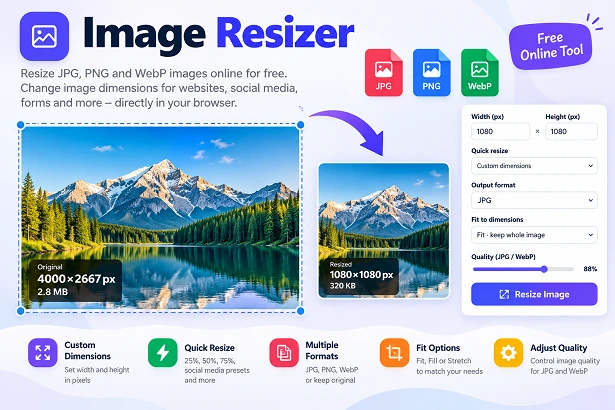
Need to change the width or height of a photo? RosePDF Image Resizer makes it easy to resize images online. You can enter custom dimensions, choose a quick resize preset, select an output format, and adjust image quality for supported formats.
Whether you are preparing a picture for a website, a social media post, a video thumbnail, or an online form, you can resize your image according to your needs. The tool supports JPG, PNG, and WebP images up to 25 MB per image.
How to Resize an Image Online
Resizing an image with RosePDF is simple. Follow these steps to get started.
- Upload an image: Select Choose Image or drag and drop an image into the upload area. Supported formats are JPG, PNG, and WebP, with a maximum file size of 25 MB.
- Set the dimensions: Enter the required width and height in pixels, or select one of the available quick resize options.
- Choose the output format: Keep the original format or select JPG, PNG, or WebP.
- Select how the image fits: Choose Fit to keep the whole image, Fill to crop the edges, or Stretch to match the exact dimensions.
- Adjust image quality: Use the quality slider for JPG or WebP output when you want to adjust the export quality.
- Resize the image: Click Resize Image and review the result.
- Download the result: Save the resized image using the download option shown by the tool.
For the best result, check the final dimensions and appearance before using the image.
Resize Image by Width and Height
Sometimes you need an image with exact dimensions rather than simply making it smaller. RosePDF Image Resizer lets you enter a custom width and height in pixels.
For example, you might need a square image measuring 1080 × 1080 pixels or a landscape image measuring 1200 × 800 pixels. Enter the dimensions required for your project and choose the appropriate fit option.
When Keep aspect ratio is enabled, the image maintains its original proportions as you change its dimensions. This helps prevent people, objects, and other parts of a photograph from looking stretched.
Quick Resize Images Without Calculating Dimensions
If you do not know the exact dimensions you need, the quick resize menu can make the process easier. Instead of calculating the new width and height yourself, choose an available preset.
The tool includes these quick resize options:
- 25% of original: Reduce the dimensions to one-quarter of the original width and height.
- 50% of original: Resize the width and height to half of their original values.
- 75% of original: Reduce both dimensions to three-quarters of their original values.
- Original dimensions: Return to the image's original width and height.
- Long edge – 1920 px: Set the longer side to 1920 pixels while maintaining the image proportions.
- Long edge – 1280 px: Set the longer side to 1280 pixels.
- Long edge – 800 px: Set the longer side to 800 pixels.
These options are useful when you want a smaller image or need to prepare a picture for a particular display size.
Image Resizer for Instagram, Facebook, X and Pinterest
Social media platforms use different image layouts. A square image may work well for one post, while a vertical or landscape image may suit another placement.
RosePDF includes quick resize presets for several common social media uses.
Instagram Square Post
Use the Instagram square post preset to prepare a square image. A square layout is useful when you want the width and height to be equal.
Instagram Story or Reel
Choose the Instagram story or reel preset when preparing a vertical image for these formats. Check the result before posting, especially if important text or objects are close to the edges.
Facebook Landscape Post
The Facebook landscape post preset helps you prepare a horizontal image for a landscape-style post.
X Post Image
Use the X post image preset to prepare an image for a post on X. Review the final appearance to make sure the main subject remains visible.
YouTube Thumbnail
The YouTube thumbnail preset helps you prepare a thumbnail image for a video. Keep the main subject and important text easy to see at the final size.
Pinterest Pin
Use the Pinterest pin preset to prepare a vertical image for a pin. A suitable layout can help your image display more naturally in a tall format.
Social media requirements can change, and different placements may use different dimensions. Always check the platform's current recommendations before publishing.
Choose the Right Image Fit Option
Changing an image's width and height does not always produce the same visual result. RosePDF provides three fit options to help you decide how the resized image should look.
Fit – Keep Whole Image
Choose Fit when you want the entire image to remain visible inside the selected dimensions. Depending on the original proportions, the result may have empty space on two sides.
This option is useful when you do not want any part of the original image to be cropped.
Fill – Crop Edges
Choose Fill when you want the image to cover the selected dimensions completely. Parts of the edges may be cropped if the original image has a different aspect ratio.
This option can be useful for square graphics, thumbnails, and social media layouts where the full area needs to be filled.
Stretch – Exact Dimensions
Choose Stretch when you need the image to match the exact width and height you entered. This option may change the image's proportions, making people or objects look wider or taller than they originally were.
Use Stretch only when matching the exact dimensions is more important than preserving the original proportions.
Convert Images to JPG, PNG or WebP While Resizing
Sometimes you need to change both the image dimensions and the file format. RosePDF Image Resizer lets you choose an output format from the available options.
- JPG: Commonly used for photographs and everyday images.
- PNG: Useful for graphics, screenshots, and images that need transparency support.
- WebP: A modern image format commonly used on websites.
You can keep the original format or choose another supported format from the output menu. The result may differ in file size, quality, or transparency depending on the selected format and export settings.
If you only need to change an image's format, you can also use our Image Converter.
Adjust Image Quality for JPG and WebP
The quality slider lets you adjust the export quality for JPG and WebP images. This can help you balance visual appearance and file size.
A higher quality setting generally retains more visual detail, while a lower setting may produce a smaller file with more visible compression. The best setting depends on how the image will be used.
PNG is not controlled by the same quality slider in this tool. If your main goal is to reduce an image to a specific file size in KB, use our Image Compressor to KB.
Image Resizer for Websites and Blogs
Website images should fit the space where they will appear. For example, a large original photograph may not need its full dimensions when it will be displayed as a small thumbnail or a compact image in a blog post.
Resizing an image to more suitable dimensions can make it easier to manage and prepare for a website. However, resizing dimensions and compressing a file are different processes. You may need to resize an image first and compress it afterward if you also have a file-size limit.
Resize Images for Online Forms and Documents
Online application forms, registration portals, and document services sometimes specify photo dimensions. A resizer can help you prepare an image with the required width and height.
Before uploading the result, read the form's instructions carefully. Some forms also specify file size, format, background, or other photo requirements. Resizing alone does not guarantee that an image will meet every requirement.
For ID-style photos, visit our Passport Size Photo Maker. If you need to prepare a PAN-related photograph and signature, try our PAN Card Photo & Signature Resizer.
Does Resizing an Image Reduce Its File Size?
Resizing an image to smaller dimensions can reduce its file size, but the result depends on the original image, output format, and export settings. A smaller image is not guaranteed to meet a particular KB limit.
If a website asks you to upload a photo below a specific size, first choose suitable dimensions and then check the resulting file size. If necessary, use our Image Compressor to KB to reduce the file size further.
Will Resizing Affect Image Quality?
Resizing can affect the appearance of an image. Reducing dimensions may remove fine details, while enlarging a small image can make it appear blurry or pixelated.
For a clearer result, start with a good-quality original and avoid enlarging it far beyond its original dimensions. For JPG and WebP output, the quality setting also affects the final appearance.
Resize Images Privately in Your Browser
RosePDF Image Resizer processes images locally in your browser. Your image is not sent to RosePDF or another server for resizing, as indicated by the tool's privacy notice.
This approach helps you resize images without uploading them to a remote processing service. Very large images may use significant memory on your device, so performance can vary depending on your browser, available memory, and image dimensions.
The tool accepts JPG, PNG, and WebP images up to 25 MB. If an image is larger than the allowed limit, choose a smaller supported image before continuing.
Frequently Asked Questions
- What is an Image Resizer?
An Image Resizer is an online tool that changes the width and height of an image to match your required dimensions. - Can I resize images online for free?
Yes, you can use RosePDF Image Resizer to resize supported images directly in your browser. - Which image formats does RosePDF Image Resizer support?
The tool supports JPG, PNG, and WebP images. - What is the maximum image upload size?
You can select an image up to 25 MB for resizing. - Can I enter custom image dimensions?
Yes, you can enter your preferred width and height in pixels or choose a quick resize preset. - What does Keep Aspect Ratio mean?
Keep Aspect Ratio maintains the original relationship between an image's width and height to help prevent unwanted stretching. - What is the difference between Fit, Fill, and Stretch?
Fit keeps the whole image visible, Fill covers the selected area and may crop the edges, while Stretch matches the exact dimensions and may distort the image. - Can I resize images for Instagram and YouTube?
Yes, the tool includes quick resize presets for Instagram square posts, Instagram stories or reels, and YouTube thumbnails. - Can I convert an image to JPG, PNG, or WebP while resizing?
Yes, you can select JPG, PNG, or WebP as the output format using the available format options. - Can I adjust image quality?
Yes, you can adjust the quality setting for JPG and WebP output using the quality slider. - Does resizing an image reduce its file size?
Resizing can reduce the file size, especially when you reduce the image dimensions. The final size also depends on the output format and quality settings. - Will resizing affect image quality?
Resizing may affect sharpness and detail. Enlarging a small image too much can make it look blurry or pixelated. - Are my images uploaded to RosePDF's server?
No. Image resizing and format conversion take place locally in your browser, and your images are not sent to RosePDF or another server. - Can I resize images on my mobile phone?
Yes, you can use RosePDF Image Resizer in a compatible mobile browser. Performance depends on your device and image size. - Can I enlarge an image without losing quality?
Enlarging an image may reduce its apparent sharpness. For better results, start with a high-quality original and avoid excessive enlargement.
Resize Your Images with RosePDF
Use RosePDF Image Resizer to prepare images for websites, social media, online forms, and everyday projects. Enter custom dimensions or select a quick resize preset, choose the output format, and adjust the available quality settings to suit your needs.
You can also explore our Image Converter, Image Compressor to KB, Image Background Remover, and Passport Size Photo Maker for more image-editing tasks.