
Remove Duplicate Pages From PDF
Find visually duplicate PDF pages, review them, remove selected duplicates, and download a clean PDF.
Remove Duplicate Pages from PDF Online
PDF files can sometimes contain the same page more than once. This can happen when documents are merged, scanned, edited, or assembled from multiple PDF files. Duplicate pages can make a document longer than necessary and may cause confusion when the file is shared, printed, uploaded, or submitted.
With RosePDF's Remove Duplicate Pages from PDF tool, you can clean up repeated pages from a PDF and create a more organized document. The tool is designed to make the process simple, so you can identify duplicate pages and remove the ones you do not need without dealing with complicated PDF editing software.
Whether you are working with scanned documents, application forms, reports, study material, office files, or combined PDF documents, removing unnecessary duplicate pages can help keep the final file clean and easier to manage.
Remove Duplicate Pages from PDF Online
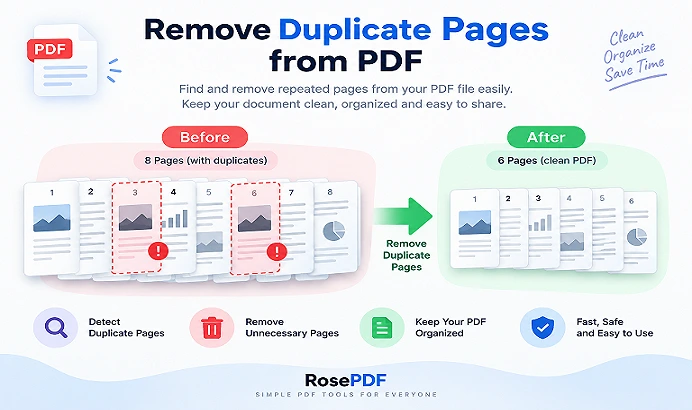
When a PDF contains repeated pages, manually checking a long document can take time. Our PDF duplicate page remover provides a convenient way to review the pages of your document and remove unwanted duplicates.
You can upload your PDF, review the available pages, identify repeated content, remove the unnecessary pages, and download the cleaned document.
The tool is useful when you need to clean up a PDF before sharing it with someone else or submitting it to an organization.
Why Do PDF Files Have Duplicate Pages?
Duplicate pages can appear in a PDF for several reasons. They are not always caused by an error in the original document.
Some common situations include:
- Combining multiple PDF files
- Scanning the same document more than once
- Creating a PDF from a large collection of images
- Accidentally adding a page multiple times
- Copying pages during PDF editing
- Merging revised documents with older versions
- Converting documents between different formats
- Preparing a large document from several smaller files
For example, if two PDF files contain the same first page and you merge them, the resulting document may contain that page twice. Removing the unnecessary copy can make the final PDF more organized.
How to Remove Duplicate Pages from PDF
Using the tool is straightforward.
1. Upload Your PDF
Open the Duplicate Pages Remover and upload the PDF file you want to clean.
2. Review the PDF Pages
Once the document is loaded, review the pages displayed by the tool. You can compare pages and identify repeated content.
3. Select Duplicate Pages
Identify the pages that appear more than once and select the copies you want to remove.
4. Remove Unwanted Pages
Remove the selected duplicate pages while keeping the version of each page that you want in the final document.
5. Download the Clean PDF
After removing unnecessary pages, create the updated PDF and download the cleaned document.
Before downloading, it is a good idea to quickly review the remaining pages to make sure the document contains everything you need.
When Should You Remove Duplicate PDF Pages?
There are many situations where duplicate pages can make a PDF unnecessarily long or difficult to understand.
Scanned Documents
When documents are scanned multiple times, the same page can accidentally be included more than once. Removing repeated pages can make the scanned PDF easier to use.
Merged PDF Files
When several PDF files are combined, overlapping pages may appear in the final document. A duplicate page remover can help clean up the merged file.
Office Documents
Reports, invoices, applications, and other business documents may contain repeated pages after multiple editing or conversion steps.
Study Material
Students and teachers often combine notes, question papers, assignments, and reference documents. Duplicate pages can appear when several files are joined together.
Application Documents
Forms and supporting documents may be combined into a single PDF before submission. Checking for repeated pages can help keep the final file organized.
Large PDF Collections
When many documents are combined, manually finding unnecessary repeated pages can become difficult. Reviewing the pages visually can make the cleanup process easier.
Benefits of Removing Duplicate Pages
Removing unnecessary repeated pages can make a PDF more convenient to work with.
Cleaner Documents
A document without unnecessary repeated pages is easier to read and navigate.
Easier Sharing
A cleaned PDF can be easier to share with colleagues, clients, students, or organizations.
Better Organization
Removing repeated content helps keep the document structured and easier to review.
Fewer Pages
Deleting unnecessary duplicates can reduce the total number of pages in a document.
Easier Printing
If you print a PDF containing duplicate pages, you may end up printing the same information multiple times. Cleaning the file first can help avoid unnecessary printing.
Better Document Preparation
Before submitting an application, report, assignment, or collection of documents, checking for repeated pages can help you prepare a cleaner final file.
Remove Duplicate Pages Without Complicated Software
Traditional PDF editing software can include many advanced features that you may not need for a simple page cleanup task. If your main requirement is to remove repeated pages, a dedicated online tool can provide a more focused workflow.
RosePDF is designed with simple PDF utilities so that common document tasks can be performed without installing a large desktop application.
You can use the tool from a modern web browser and follow the page-based workflow to clean up your document.
Remove Duplicate PDF Pages Before Sharing
It is useful to check a PDF before sending it to another person.
A duplicate page can sometimes be easy to miss, especially when the document contains dozens or hundreds of pages. If the repeated page contains an invoice, application form, personal document, report, or other information, it may create unnecessary confusion for the recipient.
A quick page review before sharing can help ensure that the final PDF contains only the pages you actually intend to include.
Remove Duplicate Pages from a PDF for Printing
Printing a PDF with repeated pages can waste paper and ink. This is particularly important for large documents.
For example, imagine a 50-page document where several pages were accidentally duplicated. Removing those unnecessary pages before printing can reduce the total number of printed pages.
For important documents, always review the final PDF before sending it to a printer.
Useful for Students and Educational Documents
Students frequently combine notes, assignments, question papers, solutions, and study material into PDF files.
During this process, the same page can sometimes be added more than once. A duplicate-page removal tool can help clean the combined document before it is shared, uploaded, or printed.
Teachers can also use the tool when preparing collections of worksheets, assignments, or study resources.
Useful for Business and Office Documents
Businesses work with PDFs every day. Reports, invoices, receipts, forms, statements, contracts, and other documents are often combined into larger files.
When documents are merged or revised, duplicate pages may appear unintentionally.
Removing unnecessary repeated pages can help create a cleaner final document before it is sent to a customer, colleague, accountant, department, or organization.
How to Check a PDF for Duplicate Pages
Finding duplicate pages is easier when you review the document systematically.
Look for:
- Pages with exactly the same content
- Repeated headings
- Identical forms
- Repeated scanned images
- Duplicate invoices or receipts
- Repeated cover pages
- Identical tables or reports
- The same page appearing in different sections
For large PDFs, compare pages carefully rather than assuming that pages with similar designs are duplicates. Two pages can look similar while containing different information.
Duplicate Pages vs Similar Pages
Not every similar-looking page should be removed.
For example, a multipage form may contain several pages with the same design but different information. Likewise, reports may use the same header and layout on every page.
Before removing a page, check its actual content. Only remove a page when you are sure that it is unnecessary or duplicated.
This is especially important for official documents, applications, financial records, and other documents where every page may contain important information.
Keep the Original PDF Safe
Before making changes to an important document, keep a copy of the original file.
This gives you a backup in case you accidentally remove the wrong page or later discover that a page was required.
For important records, it is always better to keep the original PDF separately and use the cleaned version for sharing or submission.
Who Can Use This Tool?
The tool can be useful for many different users, including:
- Students
- Teachers
- Office employees
- Business owners
- Freelancers
- Accountants
- Researchers
- Government form applicants
- Administrative staff
- Anyone working with PDF documents
You do not need advanced PDF editing knowledge to perform a simple page cleanup.
Frequently Asked Questions
What is a duplicate page in a PDF?
A duplicate page is a page that appears more than once in the same PDF document. The repeated page may have been added accidentally during scanning, merging, editing, or document conversion.
Can I remove duplicate pages from PDF online?
Yes. You can use an online PDF page management tool to review the pages in a document and remove unwanted repeated pages.
How do I remove duplicate pages from PDF?
Upload your PDF, review the pages, identify the repeated pages, select the unnecessary copies, remove them, and download the updated PDF.
Will removing a duplicate page change the other pages?
Removing a page should only remove the selected page from the document. However, you should always review the final PDF before using it for an important purpose.
Can I remove more than one duplicate page?
Yes, when multiple pages are unnecessary, you can select the pages that need to be removed and create a cleaned PDF.
Should I keep the original PDF?
Yes. For important documents, keeping the original file as a backup is recommended before making any changes.
Can similar-looking PDF pages be duplicates?
Not necessarily. Two pages can have the same layout, header, or design but contain different information. Always compare the actual content before removing a page.
Can I use the tool for scanned PDFs?
Yes, scanned documents can also contain repeated pages. Review the page previews carefully to identify unnecessary copies.
Can I use this tool on a large PDF?
The practical experience may depend on the PDF size, number of pages, browser, and device. Very large documents may take longer to process.
Is this the same as deleting a PDF page?
The result can be similar, but the purpose is different. A normal PDF page remover lets you delete pages you choose, while a duplicate-page workflow is specifically useful when you are checking a document for repeated pages.
Keep Your PDFs Clean and Organized
A well-organized PDF is easier to read, share, print, store, and submit. Duplicate pages may seem like a small issue, but they can make a document unnecessarily long and may cause confusion when someone reviews it.
With RosePDF's Remove Duplicate Pages from PDF tool, you can review your document, remove unnecessary repeated pages, and prepare a cleaner PDF for your next task.
Whether you are cleaning a scanned document, preparing an application, combining office files, organizing study material, or simply reducing unnecessary pages, a dedicated PDF page management tool can make the process easier.
Use RosePDF to manage your PDF pages and keep your documents organized.