RosePDF · Private in your browser
ID Card to PDF Maker
Prepare clear front and back scans, adjust the card edges, then save a print-ready PDF. Your image files stay on this device.
1Add the ID card photos
Front side
RequiredBack side
Optional2PDF layout and print size
Your PDF is ready
Continue with Other Tools
Everything you need to manage, convert and organize your files.
ID Card to PDF Converter Online Free – Convert Front and Back Photos to PDF
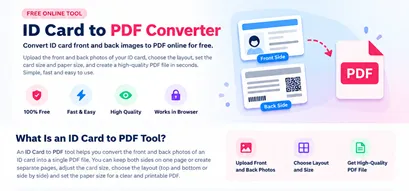
Need to convert your ID card photos into a PDF? RosePDF makes it easy to create an ID card PDF online using your card's front and back images. Upload the front-side photo, add the back-side photo if required, choose your preferred PDF layout and adjust the card's print size to create a well-organized PDF document.
Whether you want to convert an Aadhaar card photo to PDF, prepare an ID card front and back PDF, or turn scanned ID card images into a single document, this online ID Card to PDF Converter gives you control over the page arrangement, paper size, card dimensions, margins and image quality.
Convert ID Card Photos to PDF Online
An ID card often contains important information on both sides. Sharing the front and back as separate image files can be inconvenient, especially when a website or organization asks for a single PDF document.
With the RosePDF ID Card to PDF Maker, you can combine your ID card photos into a PDF file. Upload the front image, optionally upload the back image, and select how you want them to appear in the document.
You can keep both sides on one page or place them on separate pages. If you choose a single page, you can arrange the images in a Top and Bottom or Side by Side layout.
The tool also lets you customize the ID card dimensions in millimetres, adjust its displayed size and set page margins for printing.
How to Convert an ID Card Front and Back to PDF
Follow these steps to make an ID card PDF online:
- Open the ID Card to PDF Tool: Visit RosePDF and open the ID Card to PDF Converter.
- Upload the Front Image: Choose the front-side photo of your ID card. The front image is required.
- Upload the Back Image: Add the back-side photo if you want both sides in your PDF. This image is optional.
- Choose the PDF Page Option: Select Front and Back on One Page or Separate Pages.
- Select the Front and Back Layout: When using one page, choose Top and Bottom or Side by Side.
- Choose Paper Size: Select A4 or another available paper size.
- Set ID Card Dimensions: Enter the card width and height in millimetres.
- Adjust ID Card Size: Use the percentage slider to increase or decrease the card's size.
- Set Page Margins: Enter the margin you want around the card images.
- Adjust PDF Image Quality: Select your preferred image quality.
- Create Your PDF: Click the Create PDF button to generate your ID card document.
Key Features of the ID Card PDF Maker
1. Front and Back ID Card Photo Upload
Upload the front and back photos of your ID card separately. The front-side image is required, while the back-side image is optional. This makes it possible to create a PDF with one or both sides.
2. Front and Back on One PDF Page
Want your ID card front and back on the same page? Select the Front and Back on One Page option to keep both images together in one PDF page.
3. Separate PDF Pages
If you prefer separate pages, choose the Separate Pages option. The front and back images will be arranged on different PDF pages.
4. Top and Bottom Layout
Choose the Top and Bottom layout to place the front image above the back image. This vertical arrangement is useful when you want both sides displayed one below the other.
5. Side by Side Layout
The Side by Side layout places the front and back images next to each other horizontally on the same page.
6. Custom ID Card Print Dimensions
Set the ID card width and height in millimetres. For example, you can enter 100 mm × 70 mm and adjust the size percentage according to your requirements.
7. Adjustable Card Size
Use the ID Card Size slider to increase or decrease the displayed card size. The percentage setting works with the dimensions entered in the size fields.
8. Custom PDF Paper Size
Select a suitable paper size, such as A4, for your PDF document. The selected paper size determines the page on which your ID card images are arranged.
9. Adjustable Page Margins
Set page margins in millimetres to control the space around the ID card images.
10. PDF Image Quality Settings
Adjust the PDF image quality to choose the level of image detail you need. Higher quality can preserve more image detail and may increase the resulting file size.
Convert Aadhaar Card Photo to PDF
If you have an Aadhaar card image and need to prepare a PDF copy, you can use the RosePDF ID Card to PDF Converter.
Upload the Aadhaar card's front-side photo and add the back-side photo if you want both sides in the document. Choose whether to place the images on one page or separate pages, adjust the card dimensions and create your PDF.
The same image-to-PDF process can be used for other ID card photos. RosePDF converts the images you upload; it does not retrieve, verify or download Aadhaar details from an official database.
Only upload identity documents that you are authorized to use, and share the resulting PDF carefully because it may contain personal information.
Scan ID Card to PDF Using Images
Have you scanned your ID card and saved the result as an image? You can use those image files to create an ID card PDF.
First, make sure the scanned front and back images are saved in a supported format. Upload the front image and optionally add the back image. Then select your preferred page arrangement and create the PDF.
For a clear result, use sharp and readable scans. Make sure the complete card is visible and that important text is not cut off.
This is useful when you search for terms such as Scan ID Card to PDF, Scan Image to PDF or ID Card Image to PDF.
Why Create an ID Card PDF?
Converting ID card photos into a PDF can make your documents easier to manage.
- One Convenient Document: Keep the front and back photos together in a single PDF when required.
- Easy Sharing: Share one PDF instead of sending separate image files.
- Flexible Page Arrangement: Choose one page or separate pages for the card images.
- Print Size Control: Set the card dimensions in millimetres.
- Custom Margins: Adjust the space around the card images.
- Better Document Organization: Keep a digital PDF copy for personal records.
- Simple Online Process: Create a PDF from supported image files without manually arranging them in a document editor.
Tips for Creating a Clear ID Card PDF
Before creating your PDF, follow these suggestions:
- Take clear photos of both sides of the card.
- Use good lighting to avoid dark images and reflections.
- Place the card on a flat surface while taking photos.
- Keep all four edges of the card visible.
- Avoid blurry or tilted images.
- Check that the text and details are readable.
- Enter the correct card width and height.
- Choose a suitable page layout for your purpose.
- Review the PDF before printing or sharing it.
Create Your ID Card PDF with RosePDF
Turn your ID card front and back photos into a convenient PDF document with RosePDF. Upload your images, choose the page arrangement, set the card dimensions, adjust margins and image quality, and create your PDF.
Whether you are looking for an ID Card to PDF Converter, an ID Card PDF Maker, or a simple way to convert scanned ID card photos into PDF, RosePDF helps you prepare your document with customizable layout and print settings.
Frequently Asked Questions
Q1. How do I convert an ID card to PDF online?
Open the RosePDF ID Card to PDF tool, upload the front-side image, optionally add the back-side image, choose your layout and settings, and click Create PDF.
Q2. Can I convert an ID card front and back to one PDF?
Yes. Upload both images and select Front and Back on One Page to arrange them together on one PDF page.
Q3. Is the back-side photo compulsory?
No. The front-side photo is required, but the back-side photo is optional.
Q4. Can I put the front and back images on separate pages?
Yes. Select the Separate Pages option to arrange the two images on different PDF pages.
Q5. What is the difference between Top and Bottom and Side by Side?
Top and Bottom places the front and back images vertically, while Side by Side places them horizontally on the same page.
Q6. Can I convert an Aadhaar card photo to PDF?
Yes. You can upload supported Aadhaar card images and create a PDF. Add both sides if you want the front and back together.
Q7. Can I scan an ID card and convert it to PDF?
Yes. If your scanned ID card is saved as a supported image file, you can upload it and create a PDF.
Q8. Which image formats does the tool support?
The tool accepts JPG, PNG and WebP images.
Q9. What is the maximum image upload size?
The upload interface supports image files up to 25 MB.
Q10. Can I create an A4 ID card PDF?
Yes. You can select A4 as the paper size for your PDF document.
Q11. Can I set the exact ID card dimensions?
Yes. You can enter the card width and height in millimetres using the ID Card Size fields.
Q12. What does the ID Card Size percentage mean?
It controls the displayed card size relative to the dimensions entered in the width and height fields. At 100%, the card uses the entered dimensions.
Q13. Can I adjust the PDF page margins?
Yes. Enter the required margin in millimetres using the Page Margin setting.
Q14. Does higher PDF image quality increase file size?
It can. Higher image quality may preserve more detail and can produce a larger PDF file.
Q15. Can I use this tool for other identity card photos?
You can use supported JPG, PNG or WebP images of other ID cards. Upload only documents you are authorized to use and share.