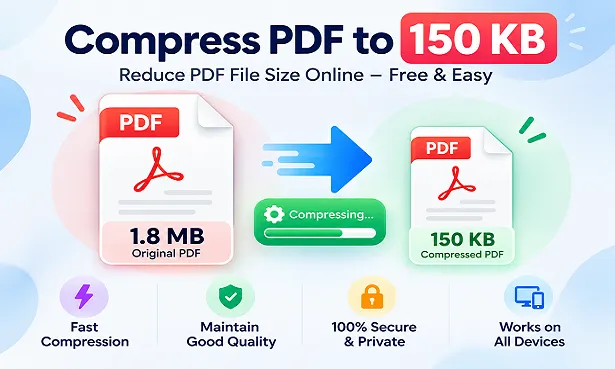
Compress PDF to 150 KB
Make your PDF smaller and choose the size that works for you—all in a few simple steps.
Your file is processed in this browser and is not uploaded to RosePDF’s server.
Choose target size
Choose the maximum file size that fits your needs. Your finished PDF will be shown before you download it.
Your PDF is ready
Continue with Other Tools
Everything you need to manage, convert and organize your files.
Compress PDF to 150 KB Online – Reduce PDF Size Near 150 KB
PDF files are commonly used for online applications, educational documents, certificates, identity records and official submissions. However, many websites have restrictions on the size of uploaded documents. When a PDF is larger than the permitted limit, you may need to reduce its file size before submitting it.
RosePDF makes this process simple with its Compress PDF to 150 KB tool. You can select a 150 KB target and prepare a PDF with a file size close to that target. The resulting file may be approximately 149 KB, which is around 1 KB below the selected size.
Whether you are preparing a job application, uploading a marksheet or sharing a scanned certificate, you can use this tool to reduce your PDF size without installing separate desktop software.
What Is Compress PDF to 150 KB?
Compress PDF to 150 KB is a PDF compression option that helps reduce a document towards a selected target size of 150 KB.
Unlike ordinary compression, where the final file size can vary depending on the original document, a target-size compressor works towards the size you select.
For example, when you choose 150 KB in the RosePDF tool, the resulting PDF is approximately 149 KB. This means the output is near the selected target rather than being guaranteed to have an exact file size of 150 KB.
This option is useful when you need a PDF close to a particular size for an online form, document submission or file-sharing requirement.
How to Compress PDF to 150 KB Online with RosePDF
You can prepare a smaller PDF using a few straightforward steps.
- Open the RosePDF Compress PDF to 150 KB tool.
- Select the PDF document from your computer or mobile device.
- Upload the file to the tool.
- Select the 150 KB target size.
- Start the compression process.
- Wait for the tool to prepare the compressed PDF.
- Download the resulting document.
- Check the final file size and open the PDF before using it.
When you select the 150 KB target, the resulting file is approximately 149 KB. The output is therefore close to the selected target size.
Why Compress PDF to 150 KB?
A 150 KB file-size requirement can be useful for different types of online submissions. Some portals specify a maximum upload size, while others provide a preferred document size.
Here are some common situations where you may need to Compress PDF to 150 KB.
1. Government Online Applications
Government application portals often require supporting documents in PDF format. These documents may include certificates, declarations, identity proofs and other application-related records.
If the portal allows a file close to 150 KB, you can use the RosePDF compressor to prepare a smaller document.
2. Government Job Applications
Candidates applying for government jobs may need to upload several documents during registration. These can include educational certificates, experience documents, category certificates and other supporting records.
If an application requires a small PDF, you can select the 150 KB target and prepare a file close to that size.
3. Educational Certificates
Students regularly submit marksheets, school certificates, admission documents and academic records through online portals.
When an institution specifies a file-size requirement around 150 KB, the Compress PDF to 150 KB tool can help prepare the document.
4. Scholarship Forms
Scholarship applications may require income certificates, educational records, identity documents and other supporting files.
A smaller PDF can make it easier to meet the upload requirements of scholarship portals. Always check the permitted maximum size before submitting your document.
5. Scanned Certificates
Scanned certificates may have larger file sizes because their pages contain image data. A PDF created by scanning a printed document can therefore exceed the size permitted by an online form.
You can use the 150 KB target option to prepare a PDF close to the required size.
6. Admission and Examination Forms
Educational institutions and examination portals may ask students to submit documents in a particular format and size.
If your PDF needs to be around 150 KB, use the target-size option instead of repeatedly trying different compression settings.
7. Email Attachments and Document Sharing
Smaller PDF documents are convenient for sharing through email and other online platforms. A file close to 150 KB can be useful when you want to keep an attachment lightweight.
Which PDF Documents Can You Compress to 150 KB?
PDF files can contain selectable text, scanned images, photographs, graphics or a combination of these elements. Their original file sizes can vary considerably.
The 150 KB target option can be useful for different supported PDF documents.
Scanned PDF Files
Scanned PDFs are created by converting paper documents into digital files. These may include certificates, application forms, handwritten records and printed documents.
If the scanned PDF is larger than required, you can use Compress PDF to 150 KB to prepare a smaller version.
Marksheet and Educational Records
Marksheets and educational certificates are frequently required during admissions, recruitment and verification processes.
If you need to submit these records as PDF files, the 150 KB target can help you prepare a document close to the requested size.
Identity and Address Documents
Some online services ask users to provide identity or address-related documents. When PDF format is accepted and the size requirement is around 150 KB, you can use the compressor before uploading the file.
Application Forms
PDF application forms may contain typed information, scanned pages, signatures and other details. Reducing the file size can help when the submission portal has a limited upload allowance.
Multi-Page Documents
A PDF containing several pages may be larger than a single-page document. You can try the 150 KB target option for supported multi-page PDFs and review the output before submitting it.
Text-Based PDFs
Documents created using word processors or office applications may contain mostly text. Their file sizes depend on the fonts, images and other elements included in the document.
You can use the target-size compressor when you need to prepare these documents close to 150 KB.
How Close Is the Final PDF to 150 KB?
When using a target-size compressor, it is important to understand the difference between the selected target and the resulting file size.
In RosePDF, selecting a 150 KB target produces a file approximately 1 KB below the selected size. For example:
| Selected Target | Approximate Output |
|---|---|
| 150 KB | 149 KB |
This is a near-target result, not a promise that the downloaded file will display exactly 150 KB.
If an online portal specifies a maximum upload size of 150 KB, a result around 149 KB can be useful because it remains below that limit. However, always check the portal's own file-size rules and the final downloaded file.
Target-Size Compression vs Regular PDF Compression
Regular PDF compression and target-size compression are not the same.
A regular compressor attempts to reduce the file size. For example, a 900 KB PDF might become 600 KB, depending on the document and compression settings.
A target-size compressor lets you choose the size you want to approach. With RosePDF, you can select 150 KB and get a result close to that target.
| Feature | Regular Compression | Target-Size Compression |
|---|---|---|
| Main purpose | Reduce file size | Reach a selected target |
| Size selection | May not be available | Select 150 KB |
| Final size | Can vary | Close to selected target |
| Suitable for | General PDF reduction | Specific size requirements |
| RosePDF 150 KB result | Not applicable | Approximately 149 KB |
This makes the target-size option useful when you have a particular file-size requirement rather than simply wanting a smaller PDF.
Benefits of Using RosePDF to Compress PDF to 150 KB
RosePDF provides an easy way to prepare PDF documents for common online tasks.
1. Choose a Specific Target
You can select 150 KB as your target instead of relying only on general compression. The output is prepared close to the selected size.
2. Simple Compression Process
The tool follows a straightforward upload, compression and download process. You do not need advanced PDF editing skills.
3. No Separate Desktop Software
You can access the online tool through a supported web browser without installing a separate PDF compression application.
4. Useful for Online Applications
The tool can help prepare certificates, marksheets, forms and other documents when an application website requires a file close to 150 KB.
5. Convenient for Smaller Attachments
A PDF close to 150 KB can be convenient for sharing and uploading when a website or service has a limited file-size allowance.
6. Easy to Use on Different Devices
You can open RosePDF through a supported browser on a computer, laptop or mobile device.
Tips Before You Compress a PDF to 150 KB
Before using the compressed document, follow these checks to avoid problems during submission.
1. Select the correct PDF: Make sure you upload the final version of your document.
2. Check the original pages: Open the original file and confirm that all required pages are included.
3. Choose the correct target: If you need a PDF close to 150 KB, select the 150 KB option.
4. Check the downloaded file size: The resulting PDF may be approximately 149 KB rather than exactly 150 KB.
5. Review document readability: Check small text, photographs, signatures, numbers and other important details.
6. Keep the original document: Save a separate copy of the original PDF in case you need it again.
7. Read the upload instructions: Confirm whether the portal specifies a maximum size or a required target size. These are different conditions.
Common Problems When Compressing PDF to 150 KB
Users may face different issues while preparing PDFs for online applications. Here are some common situations and things to check.
PDF Is Still Larger Than the Upload Limit
If the original document is much larger than the permitted size, use the 150 KB target option. After downloading, check the resulting file size before uploading it.
The Website Rejects the PDF
A portal may have additional requirements besides file size. It may restrict the file format, page count or document type. Read the complete upload instructions.
Text Is Difficult to Read
Scanned documents contain image-based information. Always open the compressed file and check that the important text and details are readable.
PDF Does Not Open
If the downloaded document does not open, download it again and try opening it with another PDF reader.
The Original PDF Has Many Pages
A multi-page PDF can contain a large amount of text and image data. Check every page after compression to make sure the document is suitable for submission.
When Should You Use the 150 KB PDF Compressor?
The 150 KB option is useful when an online service requires a small PDF or when you want to prepare a document close to a particular file size.
You can use it for:
- Government application documents.
- Job application attachments.
- Educational certificates and marksheets.
- Scholarship application documents.
- Scanned certificates and records.
- Admission and examination forms.
- Office documents and supporting files.
- Smaller PDF attachments for sharing.
If your required target is around 150 KB, use RosePDF to Compress PDF to 150 KB and check the resulting file before submitting it.
Frequently Asked Questions About Compress PDF to 150 KB
Q1. How can I compress PDF to 150 KB online?
Open the RosePDF 150 KB PDF compressor, upload your document, select the 150 KB target and start the process. Download the resulting PDF after compression.
Q2. Does RosePDF create exactly 150 KB PDFs?
The output is approximately 1 KB below the selected target. Therefore, selecting 150 KB generally produces a PDF around 149 KB rather than exactly 150 KB.
Q3. What is the output size when I select 150 KB?
The resulting file is approximately 149 KB when you select the 150 KB target. Check the downloaded file for its displayed size.
Q4. Can I compress a 1 MB PDF to around 150 KB?
You can use the 150 KB target option on a supported 1 MB PDF. Review the downloaded file and confirm that it meets your requirements.
Q5. Can I compress a scanned PDF to 150 KB?
Yes, you can use the target-size option with supported scanned PDF files. Check the final document to make sure important information remains readable.
Q6. Can I compress a marksheet to around 150 KB?
Yes. Upload the supported marksheet PDF, choose the 150 KB target and review the resulting document before submitting it.
Q7. Is the 150 KB PDF compressor useful for government forms?
Yes. It can help prepare documents when a government portal accepts PDFs and specifies a file-size requirement around 150 KB.
Q8. Can I compress a multi-page PDF to 150 KB?
You can use the target-size option for supported multi-page PDFs. Check every page after compression.
Q9. Is RosePDF's PDF compressor free?
RosePDF provides online PDF tools. Visit the tool page to use the available compression options.
Q10. Do I need to install software to compress PDF to 150 KB?
No separate desktop PDF application is required. You can access the online tool through a supported browser.
Q11. Can I use the tool on a mobile phone?
Yes. Open RosePDF in a supported mobile browser, select your PDF and use the 150 KB target option.
Q12. Can I compress a PDF larger than 5 MB to around 150 KB?
You can try the target-size option with a supported PDF. Always review the resulting document, particularly if it contains several scanned pages.
Q13. Is a PDF of 149 KB acceptable when the limit is 150 KB?
If the website specifies a maximum limit of 150 KB, a 149 KB file is generally below that limit. However, follow the portal's own rules and check the displayed file size.
Q14. What is the difference between 150 KB and 150 MB?
150 KB is much smaller than 150 MB. Using decimal units, 1 MB equals 1,000 KB.
Q15. Can I compress a certificate to 150 KB?
Yes. Use the 150 KB target option with a supported certificate PDF and review the downloaded file before submission.
Q16. Can I use the compressor for job applications?
Yes. It can help prepare certificates and other PDF attachments when a recruitment portal requires a document close to 150 KB.
Q17. Will the PDF size always be exactly 149 KB?
The 150 KB target is designed to produce a result approximately 1 KB below the selected target. Check the downloaded file to confirm its actual displayed size.
Q18. What if my original PDF is already smaller than 150 KB?
If your original PDF is already below the required maximum size, additional compression may not be necessary. Check the upload instructions before processing it.
Q19. Can I compress a PDF containing images to around 150 KB?
You can use the target-size option for supported image-based PDFs. Review the resulting document to check its images and important details.
Q20. Can I use the 150 KB compressor for admission forms?
Yes. It can help prepare supported admission-related PDF documents when the institution specifies a file-size requirement around 150 KB.
Q21. How do I reduce PDF size to 150 KB on Windows?
Open RosePDF in a supported browser on your Windows computer, upload your PDF, select the 150 KB target and download the processed file.
Q22. Can I use this tool without a PDF editor?
Yes. You can use the online compressor without installing a separate PDF editing application.
Q23. Why does an online form reject my 149 KB PDF?
The form may have additional requirements related to format, page count, document type or other restrictions. Check the portal's instructions and confirm the actual file size.
Q24. Can I compress an application form to around 150 KB?
Yes. You can use the 150 KB target option for supported application-form PDFs.
Q25. Is 150 KB enough for a scanned certificate?
It depends on the number of pages and the certificate's contents. Review the final PDF to make sure the important information is readable.
Q26. Can I use the same tool for different PDF documents?
Yes. You can use the tool for different supported documents, such as certificates, forms, marksheets and other PDF attachments.
Q27. Can I compress PDF to 150 KB for email?
Yes. A PDF close to 150 KB can be convenient for email attachments when the recipient or email service has a suitable size requirement.
Q28. Is the 150 KB target smaller than the 200 KB target?
Yes. A 150 KB target is smaller than a 200 KB target. Choose the option that best matches the file-size requirement of your application.
Q29. What should I check after PDF compression?
Check the downloaded file size, page count, text, images, signatures and other important information before submitting or sharing the document.
Q30. Where can I compress PDF to 150 KB online?
Visit RosePDF and open the Compress PDF to 150 KB tool. Upload your supported PDF, select the 150 KB target and download the resulting file.
Compress PDF to 150 KB Online with RosePDF
Preparing documents for online applications becomes easier when you know the required file size. RosePDF helps you select a target size and prepare a PDF close to that requirement.
With the Compress PDF to 150 KB tool, you can prepare certificates, marksheets, job application documents, scanned records and other supported PDFs. Selecting the 150 KB target produces a file approximately 149 KB, making it useful when you need a document below a 150 KB maximum upload limit.
Open RosePDF, select your document, choose the required target and download the compressed PDF. Always review the final file before uploading it to an application portal.
FAQ
1. How can I compress a PDF to 150 KB online?
Open the RosePDF Compress PDF to 150 KB tool, upload your PDF and start the compression process. Download the compressed file and check its final size.
2. How do I reduce PDF size to 150 KB for an online form?
Upload your PDF to the compression tool and reduce its file size. Make sure the final document meets the upload limit specified by the form.
3. Can I compress a PDF under 150 KB?
Yes, it may be possible depending on the original file size, number of pages and image content. Some PDFs may require stronger compression.
4. Can I make a PDF exactly 150 KB?
The final file size depends on the original document and compression settings. An exact 150 KB result cannot be guaranteed for every PDF.
5. Will compressing a PDF to 150 KB reduce its quality?
Compression may affect image quality, especially in scanned documents. Always check the readability of text, photographs and signatures after compression.
6. Can I compress a scanned PDF to 150 KB?
Yes. However, the result depends on the scan resolution, number of pages, colours and image details.
7. Can I compress a PDF to 150 KB on mobile?
Yes. Open RosePDF in your mobile browser, select your PDF and use the compression tool to download the smaller file.
8. Why is my PDF still larger than 150 KB after compression?
Large images, multiple scanned pages and existing compression can prevent a PDF from reaching 150 KB.
9. Can I compress a PDF to 150 KB for a job application?
Yes. You can prepare resumes, certificates and supporting documents when a job application portal requires a PDF of 150 KB or less.
10. Do I need to install software to compress a PDF?
No separate desktop software is required. You can use the RosePDF online tool through your web browser.
11. Can I compress multiple-page PDFs to 150 KB?
Yes, you can try, but the result depends on the number of pages and the content inside the document.
12. Is a 150 KB PDF suitable for online document uploads?
Yes, if the website accepts that file size and the compressed document remains readable.