All-in-One PDF Manager
Merge PDFs, add more files, reorder pages, rotate pages and delete unwanted pages.
Continue with Other Tools
Everything you need to manage, convert and organize your files.
PDF Manager Online – Manage, Organize, Merge and Edit PDF Pages
Managing PDF documents becomes difficult when you have multiple files, hundreds of pages, or documents that need rearranging. Sometimes you need to combine several PDF files, remove unwanted pages, rotate incorrect pages, insert blank pages, or change the order of an entire document.
The PDF Manager by RosePDF provides a convenient way to manage PDF files and individual pages from one place. Instead of opening separate tools for every small task, you can use one workspace to organize your documents, make page-level changes, and prepare your PDF for downloading.
Whether you are managing office documents, educational notes, scanned certificates, business records, or application documents, RosePDF PDF Manager helps make PDF management easier.
What Is a PDF Manager?
A PDF Manager is an online tool that allows you to manage PDF documents and their individual pages.
Unlike a basic PDF viewer, a PDF manager provides options to change the structure and arrangement of a document. You can work with multiple PDF files, view their pages as thumbnails, select specific pages, and perform different operations.
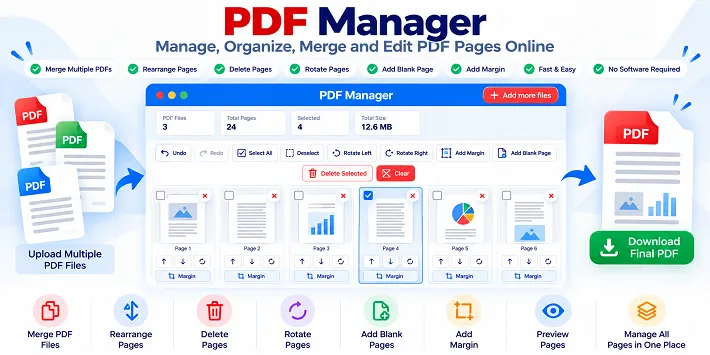
With the RosePDF PDF Manager, you can manage your PDF pages through a visual workspace. You can see the total number of PDF files, total pages, selected pages, and combined file size while working.
What Can You Do with RosePDF PDF Manager?
RosePDF PDF Manager brings several useful PDF management options together in one interface.
1. Merge Multiple PDF Files
Have multiple PDF documents that need to become one file? You can add more PDF files and manage them together in the same workspace.
For example, you can combine an application form, educational certificates, identity documents, and supporting documents into a single PDF.
This is useful when submitting multiple documents through an online application portal or sharing a complete document with someone.
2. Organize and Rearrange PDF Pages
Sometimes pages appear in the wrong order after scanning or combining documents.
The page arrangement feature helps you organize your document according to your preferred sequence. You can move pages up or down and arrange the document before downloading it.
This is especially useful when preparing application documents, study notes, reports, and scanned records.
3. Delete Unwanted PDF Pages
PDF documents may contain duplicate pages, unnecessary blank pages, or information that you do not want to include in the final document.
Using the page selection options, you can select individual pages and delete the selected pages.
You can also use the Select All and Deselect options to manage page selections more conveniently.
4. Rotate PDF Pages
Scanned documents sometimes contain sideways or incorrectly oriented pages.
The Rotate Left and Rotate Right options help correct page orientation. You can rotate individual pages using their page controls or work with selected pages using the toolbar options.
This makes your PDF easier to read and more professional.
5. Add Blank Pages to PDF
Sometimes you need additional space in a document or want to insert a blank page between existing pages.
The Add Blank Page option allows you to insert a new blank page into your document.
You can use this when preparing notes, reports, document collections, or other PDF files that need additional pages.
6. Add Margins to PDF Pages
A document may have text or content positioned too close to the edges.
The Add Margin option helps you add extra space around PDF pages. This can make documents more convenient to print, read, or organize.
You can also use the individual page margin controls when you want to manage margins for particular pages.
7. Undo and Redo Changes
While organizing a large PDF, you may accidentally make a change that you do not want.
The Undo and Redo options help you move backward or forward through supported editing actions. This makes it easier to manage your document without restarting every time you make a mistake.
8. Add More PDF Files
You do not need to manage every PDF separately when you want to work with multiple documents.
Use the Add More Files option to bring additional PDF files into the workspace. You can then manage their pages together and prepare the required document.
9. Select and Manage Individual Pages
The visual page manager displays PDF pages as individual thumbnails.
Each page provides controls that help you manage it. You can select pages using checkboxes, remove individual pages, insert additional pages, rotate pages, and adjust margins.
This page-by-page approach makes it easier to work with long PDF documents.
How to Use the PDF Manager Online?
You can manage your PDF files using the RosePDF PDF Manager. Follow these steps:
- Open the PDF Manager tool on RosePDF.
- Upload your PDF document using the file selection option.
- Wait for the PDF pages to appear as thumbnails.
- Check the total number of files, pages, and file size.
- Add more PDF files if you want to combine documents.
- Select the pages you want to manage.
- Rearrange pages using the available up and down controls.
- Rotate pages, delete unwanted pages, or add blank pages as required.
- Add margins to pages where needed.
- Use Undo or Redo if you want to reverse or restore a supported action.
- Review the complete document.
- Download the final PDF using the available download option.
Understanding the PDF Manager Interface
The RosePDF PDF Manager provides a visual workspace to help you understand and control your document.
Here are some of the important interface elements:
| Interface Option | Purpose |
|---|---|
| PDF Files | Shows the number of uploaded PDF files |
| Total Pages | Displays the total number of pages |
| Selected | Shows how many pages are selected |
| Total Size | Displays the combined file size |
| Add More Files | Upload additional PDF documents |
| Undo | Reverse the last supported action |
| Redo | Restore a previously undone action |
| Select All | Select all available pages |
| Deselect | Clear the current page selection |
| Rotate Left | Rotate selected pages to the left |
| Rotate Right | Rotate selected pages to the right |
| Add Margin | Add extra space around PDF pages |
| Add Blank Page | Insert a new blank page |
| Delete Selected | Remove selected pages |
| Clear | Clear the current workspace |
Individual page controls provide additional options for removing, inserting, rotating, rearranging, and adding margins to particular pages.
Who Can Use an Online PDF Manager?
A PDF Manager can be useful for almost anyone who regularly works with digital documents.
Students
Students can organize study materials, combine multiple PDF notes, remove unnecessary pages, and arrange chapters in the correct order.
Job Applicants
People applying for government and private-sector jobs can combine application documents, certificates, and supporting files into a properly arranged PDF.
Office Professionals
Office users can organize reports, invoices, scanned documents, presentations, and business records.
Business Owners
Businesses can manage bills, quotations, agreements, invoices, and other PDF documents in a single workspace.
Cyber Cafes and Online Service Centres
Online service operators can use a PDF manager to prepare customer documents, organize scanned certificates, and combine multiple files for online submissions.
Teachers and Educational Institutions
Teachers can arrange educational materials, combine question papers, and prepare organized PDF documents for students.
PDF Manager vs Using Multiple PDF Tools
Using separate tools for every PDF operation can make document management time-consuming.
A PDF manager brings several page-management options into one workspace.
| Multiple Separate Tools | All-in-One PDF Manager |
|---|---|
| Open different tools for different tasks | Manage several tasks in one workspace |
| Upload documents repeatedly | Work with multiple PDF files together |
| Switch between different interfaces | Use one visual page manager |
| Manage pages in separate steps | Select and manage pages directly |
| Difficult to track large documents | View total files and page counts |
For users who frequently work with PDF documents, an all-in-one PDF manager can make everyday document tasks more convenient.
Tips for Managing Large PDF Documents
Follow these suggestions to organize your PDF documents more efficiently:
- Give your files meaningful names before uploading them.
- Check the total page count before making changes.
- Arrange pages in the correct sequence.
- Remove unnecessary or duplicate pages.
- Rotate sideways scanned pages.
- Use blank pages only where required.
- Add margins when documents need extra printing space.
- Review every page before downloading the final document.
- Keep a copy of the original PDF in case you need it later.
Frequently Asked Questions (FAQs)
Q1. What is a PDF Manager?
A PDF Manager is an online tool that helps users manage PDF files and individual pages. It can provide options for merging documents, rearranging pages, deleting pages, rotating pages, and inserting blank pages.
Q2. Can I merge multiple PDF files using RosePDF PDF Manager?
Yes. You can add more PDF files to the workspace and manage their pages together to prepare a combined PDF document.
Q3. Can I rearrange PDF pages online?
Yes. You can use the available page arrangement controls to move pages up or down and organize them in your preferred order.
Q4. How can I delete a page from a PDF?
Select the page using its checkbox and use the Delete Selected option. You can also use the individual page removal control.
Q5. Can I rotate individual PDF pages?
Yes. The individual page controls allow you to rotate pages. You can also use Rotate Left and Rotate Right for selected pages.
Q6. Can I rotate multiple PDF pages at once?
Yes. Select the pages you want to rotate and use the Rotate Left or Rotate Right toolbar option.
Q7. How do I add a blank page to a PDF?
Use the Add Blank Page option to insert a new blank page into your document.
Q8. Can I add margins to PDF pages?
Yes. Use the Add Margin option to add extra space around pages. Individual page margin controls are also available.
Q9. What is the Select All option used for?
Select All allows you to select all available PDF pages at once. You can then perform supported actions on the selected pages.
Q10. What do Undo and Redo do in PDF Manager?
Undo reverses the last supported action, while Redo restores an action that was previously undone.
Q11. Can I add more PDF files after uploading the first file?
Yes. Use the Add More Files option to upload additional PDF documents to your existing workspace.
Q12. Can I manage a PDF containing hundreds of pages?
Yes. The page thumbnail interface helps you view and manage large documents page by page. Actual performance may depend on your device, browser, and PDF file size.
Q13. Can I remove multiple PDF pages together?
Yes. Select the pages you want to remove and click Delete Selected to delete them together.
Q14. Is RosePDF PDF Manager useful for scanned documents?
Yes. You can organize scanned PDF documents, rearrange their pages, rotate incorrectly oriented pages, and remove unwanted pages.
Q15. Is RosePDF PDF Manager free to use?
Check the RosePDF PDF Manager page for its current usage conditions and available features.
Manage Your PDF Documents Easily with RosePDF
Managing PDF documents should not require switching between multiple tools for every small task. With the RosePDF PDF Manager, you can work with multiple PDF files, organize individual pages, remove unwanted content, correct page orientation, insert blank pages, and add margins from one convenient workspace.
Whether you are preparing job application documents, educational notes, office reports, or scanned records, use RosePDF PDF Manager to organize your PDF files and prepare them according to your needs.