
Continue with Other Tools
Everything you need to manage, convert and organize your files.
Free Online Calculator for Everyday Math and Quick Calculations
Calculations are a part of almost every day. From checking the total amount of a shopping bill to counting cash, comparing prices, calculating discounts and managing business expenses, numbers are involved in many everyday activities. Even a simple calculation can take extra time when you have to work it out manually or open a separate application. A reliable Free Online Calculator makes these tasks much easier by giving you a convenient place to perform calculations whenever you need them.
The RosePDF Online Calculator is designed for people who want a simple, quick and convenient way to solve common mathematical problems. It provides essential arithmetic operations such as addition, subtraction, multiplication and division, along with percentage, brackets, square, square root and calculator memory functions. Its compact layout keeps the buttons organised without taking up unnecessary screen space.
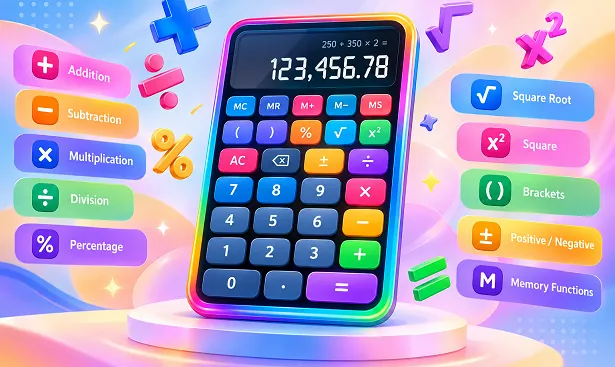
Whether you are a student checking a maths problem, a shopkeeper calculating product prices, an office worker checking expenses or someone counting cash, this Basic Calculator Online can help with everyday numerical tasks. You can enter numbers, select the required operation and view the result directly in your browser.
There is no need to install a separate calculator application or learn complicated controls. The familiar calculator layout makes it easy to start using the tool. Simply open the calculator, enter your numbers and perform the calculation.
What Is an Online Calculator?
An online calculator is a digital tool that performs mathematical calculations through a web browser. Instead of using a physical calculator or installing software on your computer or mobile phone, you can use a calculator available on a website.
A basic online calculator is useful for solving common arithmetic problems. It can calculate totals, differences, products, divisions and percentages. Some calculators also include additional functions such as brackets, square roots, memory storage and keyboard support.
The RosePDF calculator combines these commonly used functions in one compact interface. It is intended for everyday calculations rather than advanced scientific or engineering work. The controls are arranged in a familiar format so that users can understand the functions without needing special instructions.
For example, imagine that you are purchasing several products with different prices. You can use addition to calculate the total, subtraction to find the remaining amount after payment and multiplication to calculate the price of multiple identical items. If you need to calculate a percentage, the percentage button is available as well.
An Online Math Calculator is also convenient when you are working on another tool. You can use it alongside the RosePDF Cash Denomination Calculator to perform additional calculations while counting currency.
Use the RosePDF Free Online Calculator
The RosePDF calculator is built around the mathematical operations people use most often. The display area shows the current expression and result, while the buttons allow you to enter numbers and choose operations.
The calculator is useful for both short and longer calculations. You can enter a single operation, such as 250 + 150, or use brackets to group parts of a longer expression.
The following sections explain the available calculator functions and how they can be used in practical situations.
1. Addition Calculator – Add Numbers Easily
Addition is one of the most frequently used mathematical operations. It helps you find the combined value of two or more numbers.
The addition function on the RosePDF Basic Calculator allows you to add amounts without calculating each step manually. Press the plus (+) button between the numbers you want to add and then press the equals (=) button to view the total.
Example:
Suppose you receive three payments:
- First payment: ₹250
- Second payment: ₹450
- Third payment: ₹300
The calculation is:
250 + 450 + 300 = 1,000
The total amount is ₹1,000.
Where is addition useful?
- Adding daily shop sales.
- Calculating the total of shopping items.
- Adding multiple cash amounts.
- Combining expenses from different sources.
- Finding the total cost of products.
- Adding payments received from different customers.
For shopkeepers and small business owners, a quick addition calculator can save time when checking bills and daily totals. Students can also use it to verify answers to basic arithmetic questions.
2. Subtraction Calculator – Find the Difference Between Numbers
Subtraction helps you calculate the difference between two numbers. It is commonly used when finding remaining money, outstanding payments, discounts and changes in amounts.
To subtract one number from another, enter the first number, press the minus (−) button, enter the second number and press equals.
Example:
You have ₹2,000 and spend ₹650.
2,000 − 650 = 1,350
Your remaining amount is ₹1,350.
Common uses of subtraction include:
- Calculating remaining cash.
- Checking the balance after a payment.
- Finding the difference between two prices.
- Calculating how much money is left from a budget.
- Comparing monthly expenses.
- Finding the amount still to be collected from a customer.
A Simple Online Calculator is particularly useful when you need to perform several small subtraction calculations throughout the day. Instead of working out each difference mentally, you can enter the values and check the result.
3. Multiplication Calculator – Calculate Repeated Values
Multiplication is useful when the same amount or quantity is repeated. It saves time compared with adding the same number multiple times.
The multiplication function uses the multiplication (×) button. Enter the first number, select multiplication, enter the second number and press equals.
Example:
A product costs ₹85 and you purchase 12 pieces.
85 × 12 = 1,020
The total price is ₹1,020.
Practical uses of multiplication:
- Calculating the price of multiple products.
- Finding the total cost of repeated items.
- Calculating wages for a fixed number of working days.
- Working out quantities and unit prices.
- Calculating the value of multiple identical payments.
- Solving school and college mathematics problems.
For example, if one notebook costs ₹40, the cost of 15 notebooks can be calculated by multiplying 40 by 15. This makes multiplication a useful feature for students, shopkeepers and anyone who regularly works with quantities.
4. Division Calculator – Divide Amounts into Equal Parts
Division is used to split a number into equal parts or find how many times one value fits into another.
The RosePDF calculator includes a division (÷) button. Enter the number you want to divide, press the division button, enter the divisor and select equals.
Example:
You want to divide ₹1,500 equally among five people.
1,500 ÷ 5 = 300
Each person receives ₹300.
Division can help with:
- Sharing expenses equally.
- Splitting payments among people.
- Calculating the cost per item.
- Finding average amounts through basic arithmetic.
- Dividing quantities into equal groups.
- Solving everyday numerical problems.
For example, if a box contains 120 items and you want to distribute them equally among 6 groups, division will help you find the number of items in each group.
Remember that division by zero is mathematically undefined. The calculator does not provide a normal numerical result for division by zero.
5. Percentage Calculator – Calculate Percentages Quickly
Percentage calculations are useful in shopping, business, education and financial planning. They help express a value as a part of 100.
The RosePDF calculator includes a percentage (%) button for common percentage calculations. You can use it as part of an arithmetic expression.
Example:
You want to calculate 10% of 500.
The calculation is:
500 × 10% = 50
Therefore, 10% of 500 is 50.
Another example is finding a discount. If a product costs ₹2,000 and the discount is 15%, the discount amount is ₹300. The price after the discount is ₹1,700.
Percentage calculations are useful for:
- Checking shopping discounts.
- Calculating percentage increases and decreases.
- Working out marks and scores.
- Calculating commission amounts.
- Understanding price changes.
- Solving basic percentage problems.
The percentage function is helpful for quick arithmetic involving percentages. For specialised tasks such as GST calculations, use a dedicated GST Calculator rather than relying on a general calculator alone.
6. Bracket Calculator – Handle Longer Expressions
Brackets are used in mathematics to group numbers and operations. They help make longer expressions easier to understand and control the order of calculations.
The RosePDF calculator supports opening and closing brackets. You can use these buttons when a calculation contains multiple operations.
Example:
(20 + 10) × 5
First, calculate the expression inside the brackets:
20 + 10 = 30
Then multiply:
30 × 5 = 150
The final answer is 150.
Without brackets, an expression may be evaluated according to the normal mathematical order of operations. Brackets make it possible to specify which part should be calculated together.
When should you use brackets?
- When adding several values before multiplication.
- When grouping expenses.
- When solving multi-step arithmetic problems.
- When calculating differences between combined amounts.
- When working with longer mathematical expressions.
The bracket function makes the calculator more useful than a basic four-operation calculator.
7. Square Function – Multiply a Number by Itself
The square function calculates the result of multiplying a number by itself. It is represented by the x² button.
Example:
If you want to calculate the square of 8:
8 × 8 = 64
Therefore, the square of 8 is 64.
Other examples include:
- 5² = 25
- 10² = 100
- 12² = 144
- 15² = 225
The square function is useful for basic mathematics, school exercises and calculations involving squared values.
To use it, enter a number and press the x² button. The calculator will display the squared result.
8. Square Root Calculator – Find the Square Root of a Number
A square root is a number that produces the original value when multiplied by itself.
For example:
√64 = 8
Because:
8 × 8 = 64
The RosePDF calculator includes a square root (√) function for quick square root calculations.
Some common examples are:
- √25 = 5
- √36 = 6
- √49 = 7
- √81 = 9
- √100 = 10
The square root function can be useful for school mathematics and simple calculations involving square roots.
The calculator supports square roots of non-negative numbers. A negative number does not have a real square root, so the calculator will display an error instead of a normal result.
9. Positive and Negative Number Function
Mathematical calculations sometimes involve negative numbers. The plus/minus (±) button changes the sign of the current value or expression.
A positive number becomes negative, while a negative number becomes positive.
Examples:
- 25 becomes −25.
- −40 becomes 40.
- 125 becomes −125.
This function is useful when solving equations, working with differences and performing calculations that involve positive and negative values.
Instead of deleting a number and entering it again with a minus sign, you can use the sign-change button.
10. Calculator Memory Functions – MC, MR, M+, M− and MS
The RosePDF online calculator includes five memory buttons. These buttons help you store a numerical value and use it again later.
Memory functions are especially helpful when a calculation contains several steps and you do not want to enter the same number repeatedly.
MC – Memory Clear
MC stands for Memory Clear. It removes the value currently stored in the calculator’s memory.
For example, if you previously saved 500 and no longer need that value, press MC to clear it.
MR – Memory Recall
MR stands for Memory Recall. It brings the stored number back into the calculator display.
If you saved 750 earlier, pressing MR allows you to use that number again without typing it.
M+ – Memory Plus
M+ adds the current displayed number to the number already stored in memory.
For example, if the memory contains 200 and the current display shows 50, pressing M+ updates the memory to 250.
M− – Memory Minus
M− subtracts the current displayed value from the number stored in memory.
For example, if memory contains 500 and the current display shows 100, pressing M− updates the stored value to 400.
MS – Memory Store
MS saves the current displayed number into memory.
For example, if the calculator display shows 1,250, press MS to store that value for later use.
These five buttons make the calculator more convenient for calculations involving repeated amounts. They are particularly useful when you need to compare or combine several numerical values.
11. AC Button – Clear the Current Calculation
The AC button stands for All Clear. It resets the current calculation and returns the calculator display to its starting state.
Use AC when you want to begin a completely new calculation.
For example, after calculating 250 + 350, you can press AC before entering another expression. This helps avoid accidentally including numbers from an earlier calculation.
12. Backspace Button – Correct an Entry
Sometimes you may enter an incorrect digit or mathematical operator. The backspace (⌫) button allows you to remove the last character from the current expression.
For example, if you accidentally enter 1258 instead of 125, press Backspace once to remove the final digit.
This is useful when entering longer expressions because you do not always need to clear the entire calculation and start again.
How to Use the RosePDF Online Calculator
The calculator has a familiar layout, so you can start using it without learning a complicated process.
Follow these steps:
Step 1: Open the calculator
Visit the RosePDF calculator section and locate the calculator interface.
Step 2: Enter the first number
Use the number buttons to enter the value you want to calculate.
Step 3: Select a mathematical operation
Choose the required operation, such as addition (+), subtraction (−), multiplication (×) or division (÷).
Step 4: Enter the next number
Enter the second value using the number buttons.
Step 5: Press the equals button
Press the equals (=) button to calculate the result.
Step 6: Continue or clear the calculation
If you want to start another calculation, press AC. If you only need to correct the last entry, use Backspace.
You can also use percentage, brackets, square, square root and memory functions whenever needed.
Use the Calculator with Your Computer Keyboard
Typing numbers with a keyboard can be faster than clicking individual buttons, particularly when you are using a desktop or laptop computer.
The RosePDF calculator supports keyboard input for common calculations.
You can use the following keys:
- Number keys (0–9) to enter numbers.
- Decimal point (.) to enter decimal values.
- Plus (+) for addition.
- Minus (−) for subtraction.
- Asterisk (*) for multiplication.
- Slash (/) for division.
- Opening and closing brackets for grouped expressions.
- Percentage (%) for percentage operations.
- Enter to calculate the result.
- Backspace to remove the last character.
- Escape to clear the current calculation.
Keyboard support makes the Quick Calculator convenient for users who prefer typing instead of clicking buttons.
Why Use a Compact Online Calculator?
A calculator does not need to occupy a large part of the screen to be useful. For everyday calculations, a compact layout can be more convenient because it keeps the controls close together.
The RosePDF calculator uses a small interface with a clear display and organised buttons. It is designed to fit comfortably alongside other content, including the Cash Denomination Calculator.
A compact calculator is useful when you want to perform a quick calculation without leaving the page or opening another application.
Its layout also makes it convenient for mobile users. The calculator buttons are arranged in a grid, making the main operations easy to find on smaller screens.
Who Can Use This Free Math Calculator?
A basic online calculator is useful for people from different backgrounds. You do not need advanced mathematical knowledge to use it.
Students
Students can use the calculator to check arithmetic answers, practise basic calculations and work with percentages, squares and square roots. It can also help them verify answers after solving a problem manually.
Shopkeepers and Retailers
Shopkeepers regularly calculate product prices, customer bills, quantities and payments. A quick calculator helps with these routine tasks.
For example, when several products have different prices, addition can be used to find the total bill. Subtraction can help calculate the remaining payment.
Office Workers
Office employees may need to calculate expenses, compare amounts, check totals and work with numerical information. A simple online calculator can help with these small tasks.
Small Business Owners
Small business owners often work with product quantities, prices, expenses and payments. The calculator can help with routine arithmetic and quick numerical checks.
It is not a replacement for accounting software or specialised financial tools, but it can be useful for everyday calculations.
General Users
Anyone who needs to add, subtract, multiply, divide or calculate percentages can use this free online calculator.
Everyday Situations Where a Calculator Can Help
A calculator is useful in many situations that may seem small individually but occur regularly.
Shopping and Household Expenses
When buying several products, you can add their prices to estimate the total cost. You can also subtract the amount paid to find the remaining balance.
Cash Counting
While counting cash, you may need to add extra amounts or subtract payments. The RosePDF Quick Calculator is useful for these additional calculations alongside the Cash Denomination Calculator.
Budget Planning
You can add expenses from different categories and subtract them from your available budget to check how much money remains.
Price Comparison
When comparing two prices, subtraction can show the difference. Multiplication can help calculate the total cost when purchasing several units.
Sharing Expenses
Division makes it easy to split a bill equally among friends, family members or colleagues.
Study and Homework
Students can use the calculator to check basic arithmetic, percentages, squares, square roots and expressions involving brackets.
RosePDF Calculator vs a Physical Calculator
A physical calculator is useful, but an online calculator offers a different kind of convenience.
With the RosePDF Free Online Calculator, you can perform common calculations through your existing browser. You do not need to keep a separate calculator device nearby or install another application.
It is also convenient when you are already using the RosePDF website for another task. You can access the calculator alongside the Cash Denomination Calculator without switching between multiple tools.
However, a physical calculator may be more suitable when you need to calculate without internet access or use a dedicated device regularly. Both options have their own uses.
Is This an Online Scientific Calculator?
The RosePDF calculator is a basic online calculator with a few additional mathematical functions. It supports common arithmetic operations, percentage, brackets, square, square root, sign change and memory controls.
It is not a full scientific calculator.
Advanced scientific calculators generally include functions such as trigonometry, logarithms, exponents and other specialised mathematical operations. These functions are not included in this calculator.
If you need to perform everyday calculations, the RosePDF Basic Calculator is a convenient option. For advanced scientific, engineering or statistical calculations, use a dedicated scientific calculator.
Frequently Asked Questions (FAQs)
Q1. Is the RosePDF Free Online Calculator completely free?
Yes. The RosePDF online calculator is free to use. You can perform supported mathematical calculations without paying a usage fee.
Q2. Do I need to download an application to use this calculator?
No. You can use the calculator directly through your web browser. A separate calculator application is not required.
Q3. Which mathematical operations are available?
The calculator supports addition, subtraction, multiplication, division, percentage, brackets, square, square root and sign change.
Q4. Can I use this calculator on a mobile phone?
Yes. The calculator is designed with a compact, responsive layout for use on mobile phones, tablets and desktop browsers.
Q5. Can I calculate percentages with this online calculator?
Yes. The percentage (%) button is available for common percentage calculations.
Q6. What does the AC button mean?
AC means All Clear. It clears the current calculation and resets the calculator display.
Q7. What is the purpose of the Backspace button?
Backspace removes the last character from the current expression. It is useful when you enter an incorrect digit or operator.
Q8. What are MC, MR, M+, M− and MS?
These are memory functions. MC clears stored memory, MR recalls it, M+ adds the current value to memory, M− subtracts the current value from memory and MS stores the current value.
Q9. Can I use brackets in the calculator?
Yes. The calculator supports opening and closing brackets, which help you group parts of a mathematical expression.
Q10. Does the calculator have a square root function?
Yes. The square root (√) button calculates the square root of a non-negative number.
Q11. How do I calculate the square of a number?
Enter the number and press the x² button. The calculator will multiply the number by itself and display the result.
Q12. Can I enter negative numbers?
Yes. Use the ± button to change the sign of the current value or expression.
Q13. Does the calculator support keyboard input?
Yes. You can use your keyboard to enter numbers and supported operators. Press Enter to calculate, Backspace to remove the last character and Escape to clear the current expression.
Q14. Can I use this calculator for shopping bills?
Yes. You can add product prices, multiply quantities by unit prices and subtract payments to calculate remaining amounts.
Q15. Can I use the calculator while counting cash?
Yes. It is useful alongside the RosePDF Cash Denomination Calculator when you need to perform additional arithmetic while counting currency.
Q16. Can this calculator calculate GST?
It can perform basic arithmetic and percentage calculations, but it does not provide specialised GST calculations or tax breakdowns. Use a dedicated GST Calculator for that purpose.
Q17. What happens if I divide by zero?
Division by zero is mathematically undefined. The calculator will not display a normal numerical result for this operation.
Q18. Is this calculator suitable for students?
Yes. Students can use it to check basic arithmetic, percentage calculations, squares, square roots and expressions involving brackets.
Q19. Is this a scientific calculator?
No. It is a basic online calculator with additional functions such as square root, square, percentage and brackets. It does not include advanced scientific functions.
Q20. Do I need to create an account to use the calculator?
No account is required. Open the calculator page and use the available buttons to perform calculations.
Make Everyday Calculations Easier with RosePDF
Whether you are adding shopping expenses, checking a payment, calculating a discount, multiplying product quantities or solving a basic maths problem, a reliable calculator can make the task quicker.
The RosePDF Free Online Calculator brings commonly used mathematical functions together in one compact interface. You can perform addition, subtraction, multiplication, division, percentage calculations and use additional options such as brackets, square roots, squares and memory functions.
Instead of switching between different applications for small calculations, use the calculator available on this page whenever you need it.
Open the RosePDF calculator above and make your everyday calculations simple and convenient.