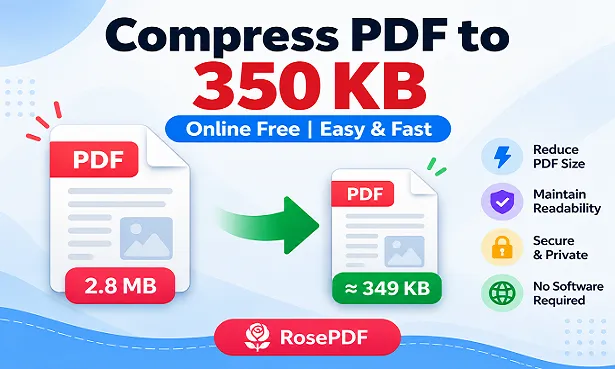
Compress PDF to 350 KB
Make your PDF smaller and choose the size that works for you—all in a few simple steps.
Your file is processed in this browser and is not uploaded to RosePDF’s server.
Choose target size
Choose the maximum file size that fits your needs. Your finished PDF will be shown before you download it.
Your PDF is ready
Continue with Other Tools
Everything you need to manage, convert and organize your files.
Compress PDF to 350 KB Online – Reduce PDF Size Near 350 KB
PDF files are widely used for sharing documents, submitting applications, uploading certificates, and keeping important records in digital format. However, a large PDF can create problems when an online portal has a file-size restriction. Many websites specify a maximum upload size for documents such as educational certificates, identity proofs, application forms, and supporting records. If your PDF exceeds the permitted limit, the website may reject the upload.
If you need to reduce a document towards a 350 KB target, RosePDF provides a convenient Compress PDF to 350 KB option. You can select your PDF, choose the 350 KB target-size option, process the document, and download the compressed version. The resulting file is generally around 349 KB, approximately 1 KB below the selected target. This can be useful when you need a document close to a 350 KB file-size requirement.
The process is straightforward. You do not need to understand complicated compression settings or manually experiment with different values. Select your document, choose the required target size, and start processing. After compression, download the file and check its actual size and readability.
The Compress PDF to 350 KB online option can be useful for government job applications, scholarship forms, college admissions, certificate uploads, examination registration, and other online submissions. You can also try it when you want to make a PDF smaller for sharing or storing.
Remember that the selected target is a compression goal, not a guarantee of an exact output size. The output is generally around 349 KB, but the document should always be checked after processing. A smaller PDF is useful only when its important information remains readable and all required pages are present.
In this guide, you will learn how to compress PDF to 350 KB, how the target-size option works, which documents you can prepare, how to check the compressed file, and how to solve common problems during PDF compression.
What Is Compress PDF to 350 KB?
Compress PDF to 350 KB is an online PDF size reduction option that helps bring a document close to a selected file-size target. It is useful when your original PDF is larger than the size permitted by a website or when you want to create a smaller document for sharing.
A PDF can contain different types of information, including selectable text, scanned pages, photographs, signatures, stamps, diagrams, and graphics. These elements contribute to the total file size. A simple PDF containing a few pages of text may be relatively small, while a scanned document containing multiple high-resolution images may occupy several megabytes.
With the RosePDF 350 KB PDF compressor, you can select the 350 KB target-size option and attempt to reduce your document towards that size. The resulting file is generally around 349 KB. This small difference is expected and does not mean that the compression process has failed.
The final result depends on the original PDF and its contents. The number of pages, image resolution, scanned content, and document structure can affect the output. Therefore, a 350 KB target should be understood as the desired compression size rather than an exact file-size guarantee.
Why Do You Need to Compress PDF to 350 KB?
Online platforms often restrict the size of documents that users can upload. These restrictions may apply to individual certificates, application documents, identity proofs, and other attachments. When a PDF is larger than the permitted limit, the upload process may fail.
A 350 KB limit may be specified by a recruitment portal, educational website, scholarship application, or another online service. If your document exceeds that limit, you may need to reduce its size before submitting it.
Here are some common situations in which the Compress PDF to 350 KB option can be helpful.
1. Government Job Applications
Government recruitment websites commonly ask candidates to upload supporting documents during the application process. These documents may include educational certificates, experience certificates, category certificates, identity proofs, and other records.
Some recruitment portals specify a separate maximum file size for each document. If the permitted size is 350 KB and your PDF is larger, you may need to compress it before uploading.
You can try the RosePDF 350 KB target-size option to prepare a smaller document. After downloading the compressed PDF, check the candidate's name, certificate number, dates, signatures, and other important details.
2. Scholarship Applications
Scholarship applications may require students to submit academic records, income certificates, identity documents, bank-related documents, and other supporting files.
Scanned documents can become large, particularly when they contain photographs or multiple pages. If the scholarship portal allows a PDF close to 350 KB, you can try to reduce PDF size to 350 KB using the target-size option.
Before uploading, make sure that the compressed file contains all required pages and that the information is readable.
3. College and University Admissions
Admission websites may ask students to upload mark sheets, transfer certificates, migration certificates, degree documents, and identity proofs.
A scanned document created using a mobile phone or scanner can sometimes exceed the upload limit. Using a PDF compressor to 350 KB can help prepare a smaller attachment when the admission portal specifies a similar file-size requirement.
Always check the admission instructions because different upload fields may have different size and format restrictions.
4. Examination Registration
Examination registration portals may require candidates to upload educational records, eligibility documents, identity proofs, and other supporting files.
If a PDF is larger than the allowed size, the portal may display an error. You can try the Compress PDF to 350 KB option to bring the file closer to the required limit.
Check the downloaded document before submitting your examination form.
5. Certificate Verification
Online verification services may ask users to submit income certificates, caste certificates, domicile certificates, birth certificates, or educational records.
These documents are often scanned and saved as PDFs. If the file is too large, compressing it towards 350 KB can help prepare it for an upload field with a similar limit.
Pay particular attention to certificate numbers, issuing authority details, dates, stamps, and signatures.
6. Email Attachments and Document Sharing
Large PDF files can be inconvenient to upload, send, or store. Reducing their size can make them easier to share through email or other supported services.
You can use the Compress PDF to 350 KB online option when you want a smaller document for everyday sharing. However, do not reduce the size unnecessarily if the original file is already convenient to share.
How to Compress PDF to 350 KB Online Free with RosePDF
You can use RosePDF through a supported web browser. Follow the steps below to reduce your PDF towards 350 KB.
Step 1: Open the Compress PDF to 350 KB Tool
Visit the RosePDF Compress PDF to 350 KB page. Open the tool interface where you can select your PDF document.
Make sure you have opened the correct target-size page. If your requirement is 350 KB, use the 350 KB option rather than selecting a different compression target.
Step 2: Select Your PDF File
Click the upload or file selection area and choose the PDF you want to compress.
Select the correct document from your computer, laptop, or supported mobile device. If you have multiple similar files, check the file name before selecting it.
It is a good idea to open the original PDF once before processing so that you know it contains the correct pages.
Step 3: Choose the 350 KB Target Size
After selecting the document, choose the 350 KB target-size option.
This tells the tool the approximate file size you want to achieve. The target is a compression goal, not a promise that every processed PDF will have an identical output size.
Step 4: Start PDF Compression
Start the compression process using the available button in the tool.
Wait until the processing is complete. The time required can vary according to the original file size, number of pages, document contents, and device or browser performance.
Avoid closing the page while the document is being processed.
Step 5: Download the Compressed PDF
Once processing is complete, use the download option to save the compressed document.
Choose a folder where you can easily find the file. On a mobile device, you can usually check the Downloads folder or use the file manager.
Step 6: Check the Final File Size
After downloading, check the properties or file details of the new PDF.
When you select 350 KB, the resulting file is generally around 349 KB, approximately 1 KB below the selected target. This is the expected output behaviour.
Step 7: Open and Review the PDF
Open the compressed PDF and review every page.
Check that all pages are present, text is readable, and important details such as names, dates, signatures, stamps, and document numbers are visible.
If the PDF is intended for an official application, do not submit it until you have checked that it meets the portal's requirements.
How Does the 350 KB Target-Size Option Work?
A PDF contains information that contributes to its total file size. This may include text, images, scanned pages, embedded fonts, and other document elements.
When you select a target size, the tool attempts to reduce the document towards the selected value. For example, if your original PDF is 1 MB, 2 MB, or larger, you can select the 350 KB target-size option and process the document.
The resulting file is generally around 349 KB. The actual output may depend on the original PDF and its contents.
A document containing mostly text may produce a different result from a scanned PDF containing photographs. Similarly, a PDF with many pages may behave differently from a short document.
Selected Target and Actual Output
It is important to understand the difference between the selected target and the downloaded file size.
| Item | Details |
|---|---|
| Selected target | 350 KB |
| Typical output | Approximately 349 KB |
| Difference | Around 1 KB below the target |
| Purpose | Reduce PDF towards 350 KB |
The 350 KB value is the selected compression target. It should not be treated as a guarantee of an exact 350 KB output for every document.
Compress PDF to 350 KB for Government Job Applications
Recruitment portals often require candidates to upload different documents while completing an online application. These may include educational certificates, identity proofs, category certificates, experience documents, and other supporting records.
Each upload field may have its own file-size and format requirements. For example, a recruitment website may allow a certificate PDF up to 350 KB while requiring a photograph or signature in a different format.
If your document exceeds the permitted size, you can try the Compress PDF to 350 KB option. Select your original PDF, choose the 350 KB target, and download the processed file.
Before submitting your application, verify the following:
- Candidate name and personal details
- Certificate or registration number
- Issuing authority
- Document date
- Signature and official stamp
- All required pages
- Actual downloaded file size
A compressed document should not be used if important details have become difficult to read. Always follow the official recruitment notification and upload instructions.
Reduce PDF Size for Certificates and Official Documents
Official documents are often scanned and stored as PDF files. Depending on the scanner settings and number of pages, these files can become larger than expected.
You can try the PDF size reducer to 350 KB for different types of certificates and records.
Caste Certificates
Caste certificates may be required for recruitment, admission, scholarships, and other official applications. If your scanned certificate exceeds the permitted file size, you can try compressing it towards 350 KB.
After processing, check the certificate holder's name, certificate number, issuing authority, and other details.
Income Certificates
Income certificates are used for different applications and verification processes. A scanned copy may become large because of its image resolution.
If the destination website allows a file close to 350 KB, try the 350 KB target-size option. Check the final document before uploading.
Domicile Certificates
Domicile or residence certificates may be required for education, employment, and other official purposes.
You can try reducing a large PDF towards 350 KB when the receiving portal has a similar size limit. Make sure the address details, certificate number, and issuing authority remain readable.
Educational Certificates
Students and job applicants may need to submit mark sheets, degree certificates, passing certificates, and other academic records.
If these documents are saved as large PDFs, the Compress PDF to 350 KB option can help prepare a smaller copy. Check every page after processing.
Experience Certificates
Experience certificates may be required for recruitment and professional applications. These documents can contain organisation details, dates, signatures, and stamps.
After using the 350 KB PDF compressor, verify that the document remains readable and all important details are visible.
Bank and Financial Documents
Some online services request bank statements, financial records, or other supporting documents. These files may contain sensitive information.
Keep the original document separately and review the compressed version before sharing or submitting it.
Compress PDF to 350 KB for Online Forms
Online forms are one of the common reasons users need a PDF size reducer. A website may provide separate upload fields for certificates, photographs, signatures, and supporting documents.
Each field can have different requirements. A 350 KB limit for a certificate does not automatically mean that the photograph or signature must also be 350 KB.
Before using the Compress PDF to 350 KB online tool, read the instructions displayed near the upload field. Check whether 350 KB is the maximum permitted size or whether the website specifies a different range.
For example, if a portal says that a PDF must be below 350 KB, a file around 349 KB may be below the stated limit. However, the website may also have other requirements related to format, page count, or document quality.
Do not simply rename a JPG file with a PDF extension. The actual file format must match the format required by the website.
Difference Between Regular PDF Compression and Target-Size Compression
Regular PDF compression and target-size compression both help reduce document size, but they are used for slightly different purposes.
Regular PDF Compression
Regular compression focuses on reducing the size of a PDF without requiring you to select a particular output size.
This option can be useful when you simply want a smaller document for storage, sharing, or email attachments.
The final file size depends on the original document and the compression process.
Target-Size PDF Compression
Target-size compression allows you to select a desired size, such as 100 KB, 150 KB, 200 KB, 250 KB, 300 KB, or 350 KB.
The tool then attempts to reduce your document towards the selected target.
This option can be useful when a website specifies a particular maximum file size and you want to prepare a PDF close to that requirement.
Which Option Should You Choose?
Choose regular Compress PDF when you only want to reduce file size without selecting a specific target.
Choose Compress PDF to 350 KB when you need to bring your document close to a 350 KB target.
If your original PDF is already below the required limit, additional compression may not be necessary.
Benefits of Using the Compress PDF to 350 KB Tool
1. Helps Prepare Documents for Online Uploads
A large PDF may be rejected by a website if it exceeds the upload limit. Reducing it towards 350 KB can help prepare the document for portals that accept files around this size.
2. Simple Target-Size Selection
You can select the required target without manually experimenting with multiple compression settings.
3. Useful for Official Documents
You can try the tool with scanned certificates, application forms, educational records, and other PDF documents.
4. Convenient Online Access
You can open RosePDF through a supported browser rather than installing a separate desktop PDF compressor.
5. Helps Reduce Large Attachments
A smaller PDF can be more convenient to upload, share, and store.
6. Useful for Students and Job Applicants
Students and candidates often need to submit documents through online portals. A target-size PDF compressor can make document preparation easier.
7. Useful for Everyday Document Management
You can try reducing PDFs that are larger than necessary for your intended sharing or storage purpose.
Important Things to Check Before Compressing a PDF
PDF compression should not be treated as only a file-size task. Your document must remain suitable for the purpose for which you intend to use it.
Check the Original Document
Open the original PDF before compression. Make sure it contains the correct pages and can be opened normally.
Check the Required Upload Limit
Different websites have different file-size restrictions. Confirm the limit before choosing the 350 KB target.
Check the Required File Format
Some portals accept PDF files, while others require JPG or PNG images. Make sure you are using the correct tool for the required format.
Check the Number of Pages
If your PDF contains multiple pages, verify that all required pages are present in the downloaded copy.
Check Small Text and Numbers
Important details such as certificate numbers, dates, names, and identification numbers should remain readable.
Keep the Original PDF
Always keep a backup of the original document. This is especially important for certificates, identity proofs, and official records.
Tips for Better PDF Compression
Start with the original PDF: Use the original file instead of repeatedly compressing an already compressed copy.
Check scan quality: If you are creating a PDF from paper documents, make sure the original scan is clear and correctly aligned.
Remove unnecessary pages when permitted: If the document contains extra pages that are not required for your submission, check whether you are allowed to remove them before compression.
Review photographs and signatures: Make sure photographs, stamps, and signatures remain sufficiently clear for their intended use.
Avoid repeated compression: Repeatedly compressing the same file may affect its quality. Use the original PDF if you need to try again.
Check the downloaded document: Do not assume the process is successful until you have opened and reviewed the resulting file.
Read the portal instructions: A PDF around 349 KB does not automatically satisfy every upload requirement. Check the permitted format, maximum size, and page restrictions.
Keep a backup: Store the original document separately so that you can use it if the compressed version is not suitable.
Common Problems While Compressing PDF to 350 KB
My PDF Is Still Larger Than 350 KB
The final output depends on the original document and its contents. Check that you selected the correct 350 KB target-size option and downloaded the processed file rather than the original.
If the output is not close to the expected size, try processing the original PDF again. Avoid repeatedly compressing the already processed copy.
My PDF Is Around 349 KB Instead of 350 KB
This is expected behaviour for the RosePDF 350 KB target-size option. The output is generally around 349 KB, approximately 1 KB below the selected target.
The selected target is a compression goal, not a promise of an exact 350 KB output. A file around 349 KB does not mean that the compression process has failed.
My PDF Looks Blurry After Compression
Scanned PDFs and image-heavy documents may lose some visual detail during compression.
Open the original and compressed versions and compare important information. If names, numbers, signatures, or stamps are difficult to read, do not use that copy for an important submission.
My PDF Is Not Opening
A download may be incomplete or the file may not have been saved correctly. Try downloading the processed PDF again and opening it with a PDF reader or another supported browser.
Also check that the downloaded file has a PDF extension.
The Website Is Rejecting My Compressed PDF
The destination website may have requirements beyond file size. Check whether it accepts PDF files, whether it specifies a maximum or minimum size, and whether it has page or document-quality restrictions.
A file around 349 KB may still be rejected if another requirement is not satisfied.
The Upload Button Is Not Working
Check your internet connection and confirm that the file is available on your device. Try selecting the PDF again.
If the problem continues, refresh the page and repeat the process using the original document.
Compression Is Taking Too Long
Large documents and PDFs containing many images can take longer to process. Wait for the process to finish and avoid refreshing the page while it is working.
If the browser becomes unresponsive, reopen the tool and try again with the original PDF.
Some Pages Are Missing After Compression
Open the downloaded file and check its page count. If any required page is missing, do not submit the document. Try processing the original file again and verify the output.
Can You Compress a Large PDF to 350 KB?
Yes, you can try using the target-size option even when the original PDF is much larger than 350 KB. However, the result depends on the document's content.
A PDF containing a few pages of text may be easier to reduce than a large scanned PDF containing many photographs. The number of pages, image resolution, scanned content, and other document elements can affect the final file size.
For example, if your original PDF is 2 MB, 5 MB, or 10 MB, you can select the 350 KB target-size option and attempt to reduce it towards approximately 349 KB. However, a large document may require substantial compression, particularly when it contains multiple scanned pages or high-resolution images.
When you Compress PDF to 350 KB, do not assume that every large PDF will produce the same output quality. The final result depends on the original file.
If your document contains many pages, review the compressed PDF carefully. Check that text, photographs, signatures, stamps, and important numbers remain readable. The goal of using a 350 KB PDF compressor should be to reduce the file size while keeping the document suitable for its intended purpose.
Is Compress PDF to 350 KB Suitable for Scanned Documents?
Yes, you can try the 350 KB target-size option with scanned PDF documents. However, scanned PDFs can behave differently from ordinary text-based documents.
When a paper document is scanned, each page may be stored as an image. High-resolution scans, colour photographs, stamps, and detailed backgrounds can increase the file size.
For example, a scanned certificate containing a photograph and official stamp may occupy more space than a simple PDF containing selectable text.
When you use Compress PDF to 350 KB online, the tool attempts to bring the file towards the selected target. The resulting quality depends on the original document and its contents.
After compression, check small text, certificate numbers, signatures, photographs, and stamps. If the document becomes difficult to read, keep the original version and do not use the compressed copy for an important submission.
Who Can Use the 350 KB PDF Compressor?
The RosePDF target-size option can be useful for different types of users who regularly work with PDF documents.
Students: Students may need to upload mark sheets, scholarship documents, admission forms, and educational certificates.
Job Applicants: Candidates may need to submit identity proofs, educational records, category certificates, and experience documents on recruitment portals.
Teachers and Educational Staff: Teachers may prepare scanned records, certificates, and other documents for online submission.
Office Workers: Employees may need smaller PDFs for email attachments, document sharing, and office records.
Small Business Owners: Business owners may use PDF documents for invoices, applications, records, and other administrative work.
General Users: Anyone who needs to reduce a PDF towards 350 KB can try the target-size option.
Why Choose RosePDF to Compress PDF to 350 KB?
RosePDF brings different document tools together in one place. Instead of searching for a separate application for every PDF task, you can explore related tools through the RosePDF website.
The Compress PDF to 350 KB page is intended for users who have a specific file-size requirement. Its target-size option makes it easier to select a compression goal without manually adjusting multiple settings.
You can try it when preparing documents for online forms, recruitment portals, scholarship applications, educational submissions, certificate uploads, and document sharing.
The most important step is to review the final PDF. A smaller document is useful only when it still contains the information required for its intended purpose.
Best Practices for Submitting a Compressed PDF
Before uploading your document to an official website, follow these practical checks:
- Read the upload instructions carefully.
- Confirm that PDF is an accepted file format.
- Check the maximum file size for the specific upload field.
- Select the 350 KB target-size option if it matches your requirement.
- Download the processed PDF.
- Check the actual file size in your device's file manager.
- Open the PDF and review every page.
- Verify names, dates, certificate numbers, photographs, stamps, and signatures.
- Keep the original document as a backup.
- Upload the compressed copy only after confirming that it meets the website's requirements.
These steps can help you avoid common mistakes during online document submission.
Frequently Asked Questions About Compress PDF to 350 KB
Q1. How can I compress PDF to 350 KB online?
Open the RosePDF Compress PDF to 350 KB page, select your document, choose the 350 KB target-size option, start compression, and download the processed PDF. Check the final file size and readability before using it.
Q2. Is Compress PDF to 350 KB free on RosePDF?
You can access the RosePDF tool online without purchasing a separate desktop PDF compression application. Check the tool page for its current usage options.
Q3. Will my PDF become exactly 350 KB?
No exact output size is guaranteed. The RosePDF 350 KB target-size option generally produces a file around 349 KB, approximately 1 KB below the selected target.
Q4. Can I compress a 1 MB PDF to 350 KB?
You can try selecting the 350 KB target-size option for a 1 MB PDF. The actual output depends on the document's pages, images, text, and structure.
Q5. Can I reduce a 2 MB PDF to 350 KB?
You can try the target-size option with a 2 MB document. Image-heavy files may require substantial compression, so check the final document carefully.
Q6. Can I compress scanned PDF documents to 350 KB?
Yes, you can try compressing scanned PDFs. However, scanned documents contain images, and compression may affect their clarity. Check small text, stamps, signatures, and numbers after processing.
Q7. Is this tool useful for government job applications?
Yes. You can use it to prepare PDFs for recruitment portals that accept documents around 350 KB. Always follow the specific upload instructions provided by the recruitment website.
Q8. Can I compress educational certificates to 350 KB?
Yes. You can try reducing scanned mark sheets, degree certificates, passing certificates, and other educational records. Verify that all important details remain readable.
Q9. Can I use the tool on my mobile phone?
Yes. You can open RosePDF through a supported mobile browser, select your PDF, and use the target-size option. Check the downloaded file in your device's file manager.
Q10. Do I need to install software to compress PDF to 350 KB?
You do not need to install a separate desktop PDF compressor to access the online RosePDF tool. You can use the supported browser interface.
Q11. Why is my compressed PDF approximately 349 KB?
The selected 350 KB value is the target size. The output is generally around 349 KB, which is approximately 1 KB below the selected target.
Q12. Will PDF compression affect document quality?
Compression can affect image clarity, particularly in scanned PDFs and documents containing photographs. Review the compressed file before submitting it.
Q13. Can I compress a PDF containing photographs?
Yes, you can try compressing a PDF containing photographs. The amount of size reduction and final image quality depend on the original document and its contents.
Q14. Can I compress multiple PDF files?
Use the file selection and processing options available in the tool. If the interface processes one PDF at a time, process each document separately.
Q15. Can I use the compressed PDF for online forms?
Yes, if the resulting document meets the form's file-size, file-format, and readability requirements. Check the instructions for the specific upload field.
Q16. Is a 350 KB PDF suitable for certificate uploads?
It can be suitable when the receiving website permits a PDF of this size. Make sure that the certificate remains clear and readable after compression.
Q17. Can I compress a PDF larger than 5 MB to 350 KB?
You can try selecting the 350 KB target. However, a large or image-heavy document may require substantial compression. The resulting quality and file size depend on the original PDF.
Q18. Why does my PDF remain larger than expected after compression?
The document may contain high-resolution images, many scanned pages, or complex content. Check that you selected the correct target-size option and downloaded the processed file.
Q19. Should I compress my PDF more than once?
It is better to start with the original document. Repeated compression may reduce quality, so avoid repeatedly compressing an already compressed copy.
Q20. How do I check the size of my compressed PDF?
On Windows, right-click the downloaded PDF and select Properties. On a mobile device, open the file manager and check the document's details.
Q21. Can I compress a PDF for scholarship applications?
Yes. You can try reducing scholarship-related documents towards 350 KB if the scholarship portal permits that file size. Check the readability of the downloaded document.
Q22. Can I use it for college admission forms?
Yes. It can help prepare PDFs containing mark sheets, certificates, identity proofs, and other admission documents when the portal has a suitable file-size requirement.
Q23. Does the tool change the content of my PDF?
The purpose of the tool is to reduce file size. However, you should review the processed document to ensure that all pages and important information are present and readable.
Q24. Can I compress identity proof PDFs?
You can try compressing identity-related PDFs. Check that photographs, names, identification numbers, and other important details remain clear.
Q25. What should I do if my compressed PDF is rejected by a website?
Check the website's maximum and minimum file-size requirements, supported file format, and page restrictions. A file close to 350 KB may still be rejected if another requirement is not satisfied.
Q26. Can I compress a PDF containing both text and images?
Yes. You can try processing PDFs that contain both selectable text and images. The final size and quality depend on the document's contents.
Q27. Is 350 KB smaller than 1 MB?
Yes. Using decimal file-size units, 350 KB is smaller than 1 MB, where 1 MB equals 1,000 KB.
Q28. Can I use the tool on a laptop or desktop computer?
Yes. Open RosePDF in a supported web browser on your computer, select the PDF, choose the 350 KB target, and process the document.
Q29. Will my compressed PDF remain editable?
Compression does not automatically make a PDF editable or non-editable. Its editability depends on the original document and the way it was created.
Q30. Which RosePDF tool should I use if I need a different PDF size?
Choose the target-size option that matches your requirement. RosePDF also provides other target-size compression pages, such as 100 KB, 150 KB, 200 KB, 250 KB, and 300 KB.
Q31. Can I compress a PDF containing multiple pages to 350 KB?
You can try using the 350 KB target-size option with a multi-page PDF. The final result depends on the number of pages and their contents. Review every page after compression.
Q32. Is a 350 KB PDF always accepted by government websites?
No. Different government websites have different upload requirements. Some may specify a maximum size, while others may require a different format or file-size range. Always read the instructions on the official portal.
Q33. Can I use the tool to reduce a PDF for email?
Yes. Reducing PDF size can make a document more convenient to attach and share through email. Make sure that the compressed document remains readable.
Q34. What happens if my original PDF is already below 350 KB?
If your document is already smaller than the required limit, additional compression may not be necessary. Check the destination website's requirements before processing it.
Q35. Can I use the compressed PDF as an official document?
The compressed file can be used when the receiving organisation accepts it and all required information remains readable. Keep the original document and verify the final copy before submission.
Conclusion
If you need to reduce a large PDF for an online application, certificate upload, examination form, or document-sharing task, RosePDF provides a convenient Compress PDF to 350 KB target-size option.
Select your PDF, choose the 350 KB target, start compression, and download the resulting document. The output is generally around 349 KB rather than exactly 350 KB. Check the actual file size and review the document's readability before submitting it.
You can also explore other PDF compression options on RosePDF if your requirement is different. Choose the target that matches the upload instructions and always keep a backup of your original document.