

Imagine scanning a paper document and saving it as a PDF, only to discover that you cannot select a sentence, copy a paragraph, or find a particular word using Ctrl+F. This happens because a scanned PDF may contain pictures of text rather than actual digital text. Understanding what is OCR helps explain how you can turn these image-based documents into searchable, more practical files.
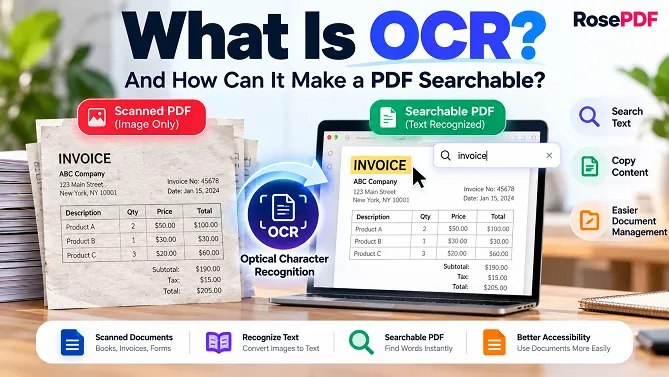
OCR stands for Optical Character Recognition. It is a technology that identifies letters and numbers in images and converts them into machine-readable text. When applied to a scanned PDF, OCR can add a text layer that allows you to search for words, select text, and copy information from the document.
What Is OCR?
OCR stands for Optical Character Recognition. It is a technology that analyzes text appearing in images and converts it into digital characters that a computer can recognize.
For example, imagine you scan a printed invoice and save it as a PDF. The document may look perfectly readable on your screen, but your computer might treat the entire page as one image. You may be unable to select a sentence or search for an invoice number.
OCR analyzes the image, identifies the printed characters, and creates a text layer that software can read. Depending on the tool and its settings, the recognized text may be searchable, selectable, or available for export.
OCR is commonly used with:
- Scanned contracts and business documents
- Printed invoices and receipts
- Books, notes, and archived records
- Application forms and certificates
- Research papers and historical documents
- Photographs containing printed text
The quality of the result depends on the source image, the language being recognized, and the OCR software.
Why Are Some PDFs Not Searchable?
Not every PDF stores information in the same way. Two documents can look identical on screen while behaving very differently when you try to select text.
Text-based PDFs
A text-based PDF contains digital text characters. You can usually select words with your mouse, copy paragraphs, and use the search function to find specific terms.
These documents are often created by exporting a file from a word processor or by using a digital document-generation system.
Scanned or image-based PDFs
A scanned PDF contains images of document pages. These images may have been created using a scanner, mobile camera, or document-scanning application.
Although the words are visible, they may not exist as actual text characters. As a result, selecting a sentence or searching for a name may not work.
OCR can help by recognizing the text within those images and adding a searchable text layer. The original page appearance can often be retained.
How Does OCR Work?
OCR systems use image-processing techniques and character-recognition models to identify text. The exact process varies by software, but most systems follow several general steps.
1. Image preparation
The software examines the page image and may adjust contrast, reduce noise, correct skew, or improve alignment. These changes can help the recognition process, especially when the scan is unclear.
2. Text detection
The system identifies areas that appear to contain text. It may distinguish paragraphs, headings, columns, tables, and individual lines.
3. Character recognition
The software analyzes the shapes of letters, numbers, and symbols. Modern recognition systems can use contextual information to determine which characters are most likely to appear together.
4. Text organization
Recognized characters are arranged into words and lines. Depending on the software, the system may also attempt to preserve the original reading order and page layout.
5. Searchable text creation
The recognized text can be stored alongside the page image or used to create an editable document. In a searchable PDF, the text layer allows users to find and select recognized words without necessarily changing the visible appearance of the page.
OCR is not perfect. Blurry scans, unusual fonts, handwritten notes, and complicated layouts can lead to recognition errors.
How to Make a Scanned PDF Searchable
The general process is straightforward, although the available options depend on the OCR tool you use.
- Choose the scanned PDF. Select the document that contains image-based pages rather than selectable text.
- Upload or open the file. Use a trusted OCR application that supports PDF documents.
- Select the recognition language. Choose the language used in the document whenever the software offers this option.
- Run text recognition. Allow the application to analyze the page images and identify the text.
- Save the result. Export or download the searchable PDF using the available output option.
- Check the document. Search for a word, select a sentence, and compare the recognized text with the original page.
If you need to work with other document tasks afterward, RosePDF also offers related utilities such as Merge PDF, Split PDF, and Organize PDF. Open the relevant page to check its available features.
Benefits of Making a PDF Searchable
Adding a text layer can make scanned documents easier to use in several ways.
Find information faster
Instead of checking every page manually, you can search for a name, date, reference number, or keyword. This is particularly helpful when working with long reports and archived records.
Copy text from scanned pages
Recognized text can often be selected and copied into another application. This reduces the need to type everything manually, although you should review the copied content for errors.
Improve document accessibility
Searchable text can help assistive technologies interpret document content. However, OCR alone does not guarantee that a PDF is fully accessible. Reading order, document structure, language settings, and other accessibility features may also need attention.
Simplify document management
Organizations often deal with large collections of scanned paperwork. Searchable text can make it easier to locate information and organize records, particularly when combined with an appropriate document-management system.
Support further document processing
Recognized text may be used for editing, indexing, or extracting information. If you need a different file format, you can also explore RosePDF’s PDF to Word utility, subject to the capabilities available on that page.
What Affects OCR Accuracy?
The quality of the original document has a major influence on recognition results. Even sophisticated software can misread text when the source image is poor.
Consider these factors before processing a file:
- Image resolution: Clear, sufficiently high-resolution pages generally produce better results than small or pixelated images.
- Text clarity: Faded printing, stains, shadows, and blurred characters can cause mistakes.
- Page alignment: Tilted or curved pages may make it harder to identify lines correctly.
- Language selection: Recognition works best when the selected language matches the document.
- Layout complexity: Multiple columns, tables, equations, and mixed text orientations may be difficult to interpret.
- Handwriting: Handwritten text is often more challenging than clean printed text, and support varies by recognition system.
For better results, use clear scans, keep pages properly aligned, and select the correct language. Always verify important names, dates, figures, and legal or financial details against the original.
OCR vs PDF Conversion: What Is the Difference?
OCR and PDF conversion solve different problems, although they can be used together.
| Feature | Ordinary PDF conversion | OCR processing |
|---|---|---|
| Main purpose | Save or convert a document to PDF | Recognize text in images |
| Searchable text | Depends on the source file | Can add recognized text |
| Scanned page support | May preserve it as an image | Can recognize text from it |
| Accuracy concerns | Depends on conversion quality | Depends on image quality and recognition |
| Typical use | Sharing and preserving documents | Searching and extracting text from scans |
or example, converting a scanned PDF into a Word document may require OCR first. Without text recognition, the resulting document might contain page images instead of editable paragraphs.
The exact outcome depends on the conversion software and its OCR capabilities.
Is It Safe to Use an Online OCR Tool?
Before uploading a document to any online service, consider the sensitivity of its contents and the provider’s privacy practices.
Documents containing identity details, bank information, medical records, signatures, or confidential business data deserve particular care. Review how a service handles uploaded files, whether files are retained, and what security protections it describes.
For sensitive paperwork, consider a reputable offline application if it meets your needs. Do not assume that every online tool automatically deletes files or that every offline application is secure.
After processing a document, review the output before sharing it. OCR can introduce mistakes, and recognized text may expose information that was previously difficult to search.
Common OCR Problems and Their Solutions
The text is recognized incorrectly
Try a clearer scan with improved lighting and higher resolution. Check that the correct recognition language is selected, and review the resulting text manually.
Search still does not work
Confirm that the application created a searchable PDF rather than simply saving the original page images. Test the result by searching for a clearly visible word.
The page layout has changed
Some OCR tools prioritize text extraction over preserving the original appearance. Try an output option that retains the page image and adds a text layer, if available.
Tables and columns appear out of order
Complex layouts can confuse text recognition and reading-order detection. Review the output carefully or use software designed to handle structured documents.
Handwritten text is difficult to recognize
Use a tool that specifically supports handwriting recognition if this feature is necessary. Results can vary considerably with handwriting style, image quality, and language.
Final Thoughts
OCR helps bridge the gap between a document that can only be viewed as an image and one whose text can be searched or copied. It can save time when working with scanned invoices, reports, forms, and archived paperwork.
For the best results, start with a clear scan, choose the correct language, and review the recognized text before using it. When a document contains important information, treat OCR output as a convenient starting point rather than a substitute for checking the original.
As you work with documents, choose the appropriate RosePDF utility for the task you need to complete, and check each tool page for its supported features.
Try Our Free Online Tool
Get your task done quickly and easily.
Frequently Asked Questions
1. What is OCR in a PDF?
OCR (Optical Character Recognition) is a technology that recognizes text in scanned PDF pages and converts it into searchable, machine-readable text.
2. How can I make a scanned PDF searchable?
You can make a scanned PDF searchable by using an OCR tool. It analyzes each page, recognizes the text, and adds a searchable text layer to the document.
3. Can OCR convert an image into editable text?
Yes. OCR can extract text from scanned images and image-based PDFs. Depending on the tool, you may be able to copy, edit, or export the recognized text.
4. Is OCR accurate?
OCR accuracy depends on image quality, resolution, font clarity, page alignment, and language support. Clear, high-resolution scans generally produce better results.
5. Can OCR recognize handwritten text?
Some OCR tools support handwriting recognition, but results can vary significantly. Printed text is usually recognized more accurately than handwritten text.
6. What is the difference between OCR and PDF conversion?
OCR recognizes text within scanned pages, while PDF conversion changes a document into another format, such as Word or JPG. Some PDF conversion tools also use OCR when working with scanned documents.
7. Can I search for a word inside a scanned PDF?
Not usually, if the PDF contains only page images. You need OCR processing to recognize the text before searching for specific words.
8. Is it safe to use an online OCR tool?
Safety depends on the service’s privacy policy, file-handling practices, and security measures. Avoid uploading confidential or sensitive documents to services you do not trust.
9. Does OCR work with every scanned PDF?
OCR works with many scanned PDFs, but heavily blurred pages, low-quality images, unusual fonts, and unsupported languages may reduce accuracy.
10. Can OCR reduce the file size of a PDF?
OCR does not necessarily reduce file size. It primarily recognizes text, and the final size depends on the original images, compression settings, and how the searchable text layer is stored.
Explore More PDF Tools on RosePDF
Once you have prepared your documents, other PDF tools can help you organize, convert, and manage your files.
Explore the available RosePDF tools below, and check each tool’s page for its supported features.
Related guides and tools: Merge PDF, Split PDF
OCR can turn a scanned document from a page you can only look at into one you can search and work with more easily. The best results come from clear scans, the right language settings, and a careful review of the recognized text.