
PDF Organizer
Merge PDFs, add more files, reorder pages, rotate pages and delete unwanted pages.
PDF Organizer
Managing a PDF becomes difficult when you need to change the order of pages, remove unwanted content, combine multiple files, or make small adjustments to the document.
RosePDF PDF Organizer gives you a simple workspace where you can manage your PDF pages visually before downloading the finished document. Upload one or more PDF files, arrange the pages the way you want, make changes, and create an organized PDF without dealing with complicated software.
Whether you are preparing a report, combining documents, removing unnecessary pages, or simply putting a PDF in the correct order, this tool brings the most useful page-management options together in one place.
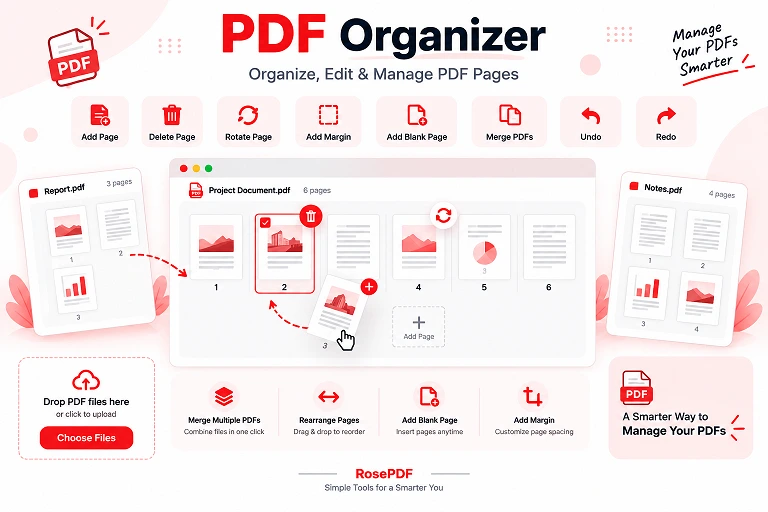
Organize Your PDF Pages Your Way
A PDF does not always arrive in the order you need. You may have pages from different files, duplicate pages, unnecessary sheets, or documents that need a little rearranging.
With the RosePDF PDF Organizer, you can work with individual pages instead of treating the entire PDF as one fixed file.
You can select the pages you want to work with, move them into a different position, rotate them, remove them, or add new pages whenever needed.
The visual page layout also makes it easier to see what your final document will look like before you save it.
What Can You Do With This PDF Organizer?
Merge Multiple PDF Files
Have several PDF files that belong to the same document?
Upload additional PDF files and bring their pages together in one workspace. You can then arrange the pages in the order you need and create a single combined PDF.
This is useful when you have separate reports, scanned documents, forms, certificates, or other PDF files that need to be collected into one document.
Delete Unwanted PDF Pages
Sometimes a PDF contains pages that are no longer required.
Select the unwanted pages and remove them from your document. This can be useful for deleting blank pages, duplicate sheets, unnecessary sections, or pages containing information you do not want in the final file.
You can select individual pages or use the selection controls to make page management faster.
Add a New Page
Need to insert another page into your document?
The PDF Organizer lets you add a page to your working document so you can continue building the PDF without starting over.
This is particularly useful when combining several documents or preparing a final report where an additional page needs to be included.
Add a Blank Page
Sometimes you need an empty page between two sections of a document.
With the Add Blank Page option, you can insert a blank page wherever it is required. This can be useful for creating separation between sections, adding notes later, or adjusting the structure of a document.
Rearrange PDF Pages
The order of pages can make a big difference to the readability of a document.
You can drag and drop PDF pages to change their position and create the sequence you want. This makes it easier to correct wrongly ordered scans, organize merged files, or build a document in a specific sequence.
Instead of repeatedly editing and saving the PDF, you can arrange the pages visually in one workspace.
Rotate PDF Pages
Scanned or photographed documents sometimes contain pages that appear sideways or upside down.
Use the Rotate Left or Rotate Right controls to correct the orientation of selected pages. You can adjust the pages that need correction without having to recreate the entire document.
Add Margins to PDF Pages
A document can sometimes look too close to the edge, especially after scanning or combining pages from different sources.
The Add Margin feature lets you increase the space around your PDF pages. You can apply a margin to selected pages or work with all pages together, depending on what your document needs.
This can be helpful when preparing documents for printing or creating a cleaner page layout.
Undo and Redo Changes
Making several changes to a PDF can sometimes lead to an unwanted edit.
That's why the tool includes Undo and Redo controls. You can step back from a recent change or restore an action that you previously reversed.
This gives you more freedom to experiment with the page arrangement without worrying about every individual change.
Select and Deselect Pages
When working with a large PDF, you may not want to apply an action to every page.
The selection controls allow you to choose specific pages and then apply supported actions to them. You can also deselect pages when you want to start a different selection.
This makes bulk page operations much easier to manage.
How to Organize a PDF Online
Using the PDF Organizer is simple:
1. Upload your PDF files
Choose your PDF files or drag and drop them into the upload area.
2. Add more files if needed
If your document is spread across multiple PDFs, use the option to add more files.
3. Review your pages
Your PDF pages will appear as thumbnails so you can see and manage them individually.
4. Select the pages you want to change
Choose individual pages or use the selection controls for multiple pages.
5. Make your changes
Delete pages, rotate them, rearrange their order, add blank pages, add margins, or combine pages from additional PDF files.
6. Check the final arrangement
Review the page order and make sure the document looks the way you want.
7. Download your organized PDF
Once everything is ready, create and download your final PDF.
Why Use a PDF Page Organizer?
Traditional PDF editors often include many features that you may never use when you only need to manage pages.
A dedicated PDF Organizer focuses on the tasks people commonly need when preparing a document:
- Arrange PDF pages visually
- Combine multiple PDF files
- Remove unwanted pages
- Rotate incorrectly oriented pages
- Add blank pages
- Add margins
- Select multiple pages
- Undo and redo changes
- Add additional PDF files
- Prepare a cleaner final document
This makes the process more straightforward, especially when your main goal is to organize the structure of a PDF rather than edit every word inside it.
When Is a PDF Organizer Useful?
A PDF page manager can be helpful in many everyday situations.
Scanned Documents
Scanned pages may appear in the wrong order or orientation. You can rearrange and rotate them before creating the final document.
Reports and Assignments
If different sections of a report are stored in separate PDF files, you can bring them together and organize the pages into one document.
Forms and Applications
Remove unnecessary pages, arrange required documents, and create a cleaner PDF package before submitting it.
Business Documents
Combine invoices, reports, supporting documents, or other PDF files into a single organized file.
Study Material
Students can combine notes or study documents and place the pages in a logical order for easier reading.
PDF Organizer vs. PDF Editor
A PDF Organizer is mainly designed for page-level management.
If you need to change the actual text, images, fonts, or other elements inside a PDF, a full PDF editor may be more appropriate.
But when your task is to:
move pages → remove pages → rotate pages → combine files → add pages → organize the document
a PDF Organizer can be a much simpler solution.
Your Files Stay in Your Hands
For documents containing personal or important information, privacy matters.
RosePDF is designed to make PDF tasks straightforward while keeping the workflow focused on your document. Whenever possible, browser-based processing can reduce the need to send files to a remote server.
For sensitive documents, users should always review the tool's privacy information and understand how their files are handled before processing them.
Frequently Asked Questions
What is a PDF Organizer?
A PDF Organizer is a tool that helps you manage the pages inside PDF documents. You can use it to rearrange, delete, rotate, add, and combine PDF pages.
Can I merge multiple PDFs?
Yes. You can add more PDF files to the workspace and combine their pages into one organized PDF.
Can I delete pages from a PDF?
Yes. Select the pages you no longer need and use the delete option to remove them from the final document.
Can I rearrange PDF pages?
Yes. You can drag and drop the page thumbnails to change their order.
Can I rotate individual PDF pages?
Yes. You can select the required pages and rotate them left or right.
Can I add a blank page to a PDF?
Yes. The Add Blank Page feature lets you insert an empty page into your document.
Can I add margins to a PDF?
Yes. You can add margins to selected pages or apply the margin setting across the document according to the available options.
Can I add another PDF after uploading one?
Yes. Use the Add More Files option to bring additional PDF files into the workspace.
What do Undo and Redo do?
Undo lets you reverse a recent change, while Redo restores an action that you previously undid.
Do I need separate software to organize a PDF?
Not necessarily. A browser-based PDF Organizer can handle many common page-management tasks without requiring traditional desktop PDF software.
A Simpler Way to Manage PDF Pages
PDF management does not always require a complicated editor. When the job is mainly about getting your pages into the right order, removing unnecessary content, combining documents, or correcting page orientation, a focused PDF Organizer can make the process much easier.
With RosePDF, you can bring your PDF files into one workspace and make the page-level changes you need before creating the final document.
Upload your PDF, organize the pages, make your changes, and create a cleaner document.